Free POSUpdated · 8 min read
A free POS system that runs on the phone you already have
Kedaify's POS is a free point of sale that runs in the browser of your phone, tablet or laptop. Tap what was bought, take cash, card, bank transfer or e-wallet, and give a receipt, and every sale lands in the same report as your online orders. There's no monthly fee for the POS and no commission on what you sell.
- Price
- Free, no monthly fee
- Runs on
- Any phone, tablet or laptop browser
- Payments
- Cash, card, transfer, e-wallet
- Currencies
- Any country's own, with its cents
What a small shop needs from a POS
A POS, short for point of sale, is where a sale gets recorded at the counter: what was bought, what it cost, how the customer paid, and the receipt they take away. For a café, a food stall or a small shop, that usually means four jobs. Ring up the order quickly, work out the change, keep a record of the day, and know at closing time what should be in the drawer.
Plenty of POS apps start free and then charge a monthly fee per device, or take a cut of every card payment. Kedaify never touches your customers' money, so there's nothing to take a cut of: the POS is part of the free plan, on as many phones as you like. A notebook and a calculator work too, until the day you want to know which drink sold best last month.
| Notebook and calculator | Kedaify POS | |
|---|---|---|
| Cost | A notebook | Free, no monthly fee |
| Change for cash | Worked out in your head | Worked out on screen |
| Receipt | Handwritten, if at all | A picture to share, or printed |
| End of the day | Add up the pages | The day's sales by payment method |
| Online orders | Kept somewhere else | In the same report |
Tap what was bought, options and all
The POS shows your menu as a grid of photos and prices, in the sections you set up for your store. Tap a product to add it. If it has options, like a size or the milk in a coffee, a sheet asks for them with their extra cost, so an oat milk flat white goes in at the right price without any arithmetic.
Prices keep their cents in every currency that has them: a RM 14.50 drink is RM 14.50, not rounded to 15. Something that isn't on the menu goes in as Other item with a name and a price. Products with a barcode can be scanned with the phone's camera, or with a USB or Bluetooth scanner that types the code for you.
- Your products with photos, in your own sections
- Options with their own price
- Cents kept in RM and S$
- Barcode scan by camera or scanner
Cash, with the change worked out
Tap Pay and choose how the customer paid. For cash, the POS offers the amounts people usually hand over, such as the exact amount or the next round note, and shows the change straight away. Type any other amount if they pay with something else.
Tap Done and the sale is saved with the time, the items, the payment and the change. If the phone has no signal at that moment, the sale waits on the phone and goes up by itself once the signal is back, so a weak connection never holds up the queue.
Card, e-wallet, transfer, or two at once
Besides cash, a sale can be recorded as bank transfer, card, e-wallet or other. Kedaify doesn't process the payment itself: the customer pays on your bank's card terminal, scans your e-wallet or bank QR, or transfers to your account, and you tap how they paid. The money goes straight to you, as it always has.
When a customer pays part in cash and the rest by e-wallet, split the payment between two methods and enter the cash part; the POS works out the rest. At the end of the day the totals come back per method, so you can check them against your bank and e-wallet apps.
A receipt the customer can keep
After each sale the POS offers the receipt: your store's name and colours, every item with its options, the total, how it was paid and the change. Save it as a picture and send it on WhatsApp, or share it straight from the phone, so customers who ask for one get it without paper.
If you'd rather print, the receipt goes straight to a thermal printer from Chrome or Edge, over Bluetooth or a USB cable on Android or a computer, or a serial port on a computer. On Android, Bluetooth Classic printers work through the RawBT app. Settings, then Printer, lets you choose how each device prints and run a test print before the first customer of the day. The receipt can also come without the Made with Kedaify line on Pro.
Discounts and voids, with the reason kept
Give a discount on one item or on the whole sale, as a percentage or an amount, and add a reason like regular customer or staff meal. The reason stays with the sale, so a discount you see a week later still makes sense.
A sale rung up by mistake can be voided with a reason too. It stays in the history, marked as voided, and drops out of the day's total. Nothing simply disappears, so the end of day numbers still match what's in the drawer.
Open bills for tables, with tax and service
In a café where people order first and pay when they leave, open a bill for the table. Add a second coffee or a slice of cake to Table 3 whenever they ask, and the bill keeps the running total. When they're ready, the bill turns into one payment with one receipt.
Service charge and tax can be added at the counter, in percent, and they show on the receipt as separate lines. Open bills and tax and service are part of Pro, which your first store can try free for its first two weeks.
End of day: count the drawer
At closing, End of day shows the day's POS sales by payment method, the discounts and voids, and the cash that should be in the drawer: the opening cash, plus cash sales, minus any cash you took out for supplies.
Count the drawer note by note, or type the total, and the POS keeps the difference. Print the Z report if you keep paper records. Past counts stay saved, so a shortfall on Tuesday can be found on Friday.
Stock that counts itself down
Turn on Track stock for a product and type how many you have. Every paid sale takes it down, from the POS and from online orders alike, and a cancelled order puts it back. At zero the product shows sold out, on the POS and on your store link, so nobody orders the toast you just sold.
One tap on the Menu tab lists what's running low. On Pro, the Stock tab logs what comes in and what you paid for it, and keeps a count you can check against the shelf.
Counter sales and online orders in one report
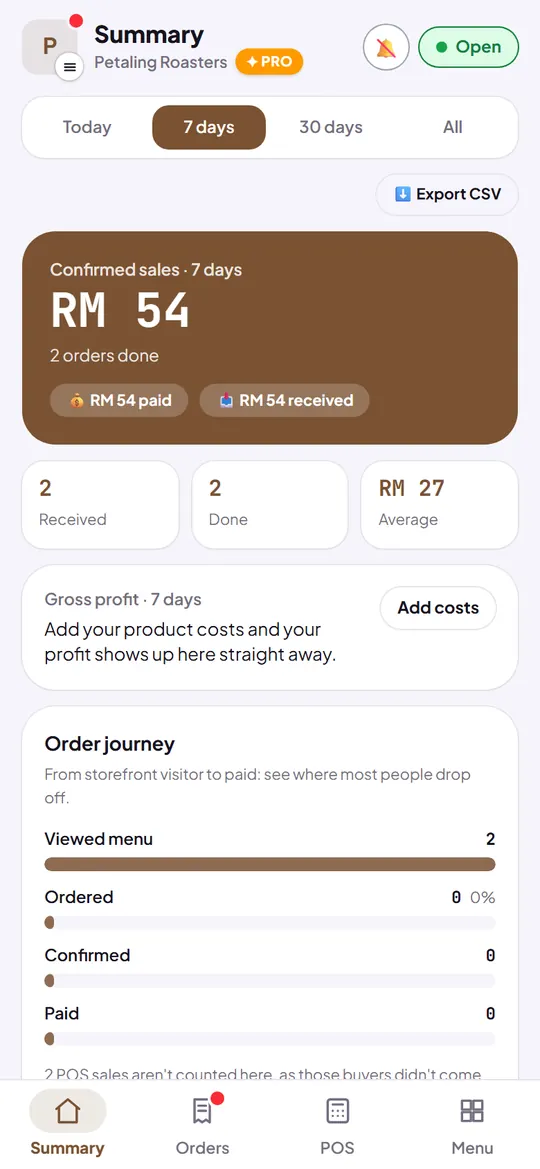
Every POS sale counts towards your sales on the Summary tab, next to the orders that come in through your store link and WhatsApp. Choose today, 7 days, 30 days or all time to see your sales, the number of orders, the average sale and your best sellers.
Each product's cost can be entered on the free plan; Pro turns it into profit per product, and exports every order to a spreadsheet for your books.
How to start
- Create a free storeSign in with Google or email, pick your country and the kind of business you run.
- Add your productsAdd each product with a price and a photo, plus options like size or milk where they apply.
- Open the POSOpen your dashboard on the phone or tablet at the counter and tap POS in the bar at the bottom.
- Ring up the first saleTap what was bought, then Pay. The receipt is ready to share or print.
What's free, and what Pro adds
These lists come straight from the plans as they are today.
Free
Free for good.
- A POS for walk-in customers: cash, card, bank transfer or e-wallet, split between two if needed
- Discounts and voids at the POS, with the reason kept
- Receipts to share, or to print on a thermal printer over Bluetooth, a USB cable, a serial port or RawBT
- Scan barcodes at the POS and in Menu with the camera, or with a USB or Bluetooth scanner
- Settings → Printer: choose how this device prints and run a test print before you sell
- Stock per product, counted down with every sale
- Sales, orders, best sellers and sales channels for any date range
- No commission. Buyers pay you directly, and Kedaify never holds the money
Pro
Your first store gets Pro free for 14 days. Outside Indonesia, Pro is then US$3.99 a month or US$29.99 a year by card.
- Bills per table, tax & service. Open a bill per table, pay at the end; tax and service on the receipt.
- End of day & Z report. Count the drawer at every close; the difference is kept, print the Z report.
- Stock & ingredients. Recipes take their ingredients on every sale; stock in, counts and restock lists are kept.
- Kitchen tickets. Print orders for the kitchen in one tap; only additions print again.
- Gross profit & margins. Profit per product from its cost or recipe, tax and service left out.
What it can't do yet, and who it suits
Better to know now than after you've set it up.
What it can't do yet
- Kedaify doesn't connect to a card terminal or confirm card and e-wallet payments by itself. You take the payment on your own terminal or QR, then record how it was paid
- Receipts print from Chrome or Edge on Android or a computer: Bluetooth (BLE) and USB printers, serial printers on a computer, and Bluetooth Classic printers on Android through the RawBT app, which is made by another company and may be paid. An iPhone or iPad can't connect to a receipt printer, so there the receipt is shared as an image instead
- Staff logins and branches belong to the Business plan, which covers up to five branches and a team of ten. Extra branches past five can only be bought in Indonesia
A good fit for
- Cafés, kopitiams and food stalls that want quick counter sales on a phone they already own
- Small shops that sell at the counter and through WhatsApp, and want one set of numbers
- Market stalls and pop-ups that need a receipt and a daily total without extra hardware
Not a good fit for
- Businesses that need card payments taken inside the POS itself
- Chains with more than five outlets under one account
Questions people ask
Is the Kedaify POS really free?
Yes. Ringing up sales, cash change, recording card and e-wallet payments, split payments, discounts, voids, receipts and the sales report are all on the free plan, with no time limit and no commission. Pro adds open bills, end of day, ingredients and kitchen tickets, and your first store can try Pro free for 14 days.
Do I need special hardware?
No. Any phone, tablet or laptop with a browser works. A Bluetooth thermal printer and a barcode scanner are optional extras.
Can it take card payments?
It records them. Kedaify doesn't process payments: the customer pays on your bank's card terminal or scans your QR, then you tap Card or E-wallet in the POS.
Does it work without internet?
Once you've opened it on a device, the POS opens again without a signal, and sales made offline are kept on the phone and sent when the signal returns.
Is the POS in English?
Yes. On any store outside Indonesia the whole dashboard, POS included, is in English, with prices in the store's own currency.
Which countries does it work in?
Any country. Prices are in your own currency, and buyers order on WhatsApp or pay you by bank transfer.