QR menuUpdated · 7 min read
A free QR menu that guests can order from
Guests scan a QR code on their table, your menu opens in their phone's browser, and they order from it. The order reaches your WhatsApp with the table number on it. The menu link and table ordering are free, with no commission.
- Menu link
- Free, no commission
- Guests need
- A phone camera, no app
- Orders go to
- Your WhatsApp and dashboard
- Table QR set
- Pro (14-day trial), or make your own
From your dashboard to the table, and the order back to your phone
Here is the whole path: you set how many tables you have, print a card for each one, the guest scans it, and the order lands in your WhatsApp with the table number on it. Guests need nothing but their phone camera.
Steps 1 and 2 are Pro. Your first store gets Pro free for 14 days, so you can print the cards straight away. On the free plan, skip straight to step 3 and make each table's code yourself, as the section on making the codes explains.
Set the number of tables
In your Kedaify dashboard open Settings, then How to order & pay, and set how many tables you have. One number, and every table gets its own code.
Print the table cards
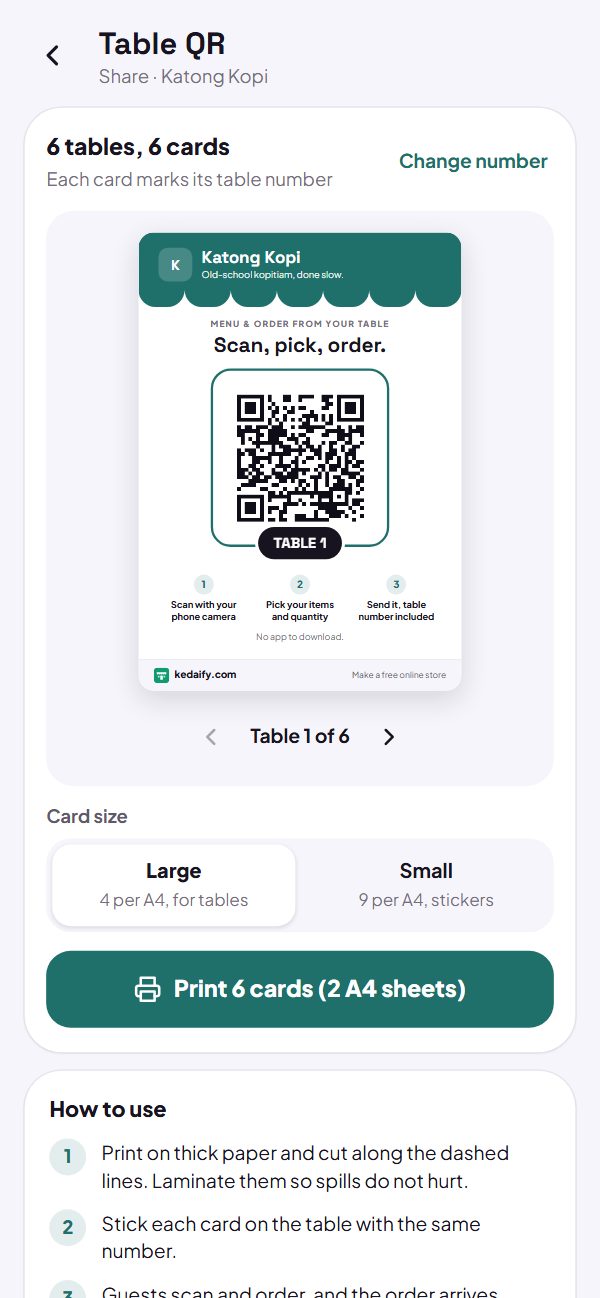
Open Share, then Table QR. Each card carries your shop's name and colour, the table number and a kedaify.com strip. Print them four or nine to an A4 sheet.
Guests scan at the table
A normal phone camera is enough. Your menu opens in the browser with photos, prices and options, and a banner tells the guest which table they're at.
The order arrives with the table on it
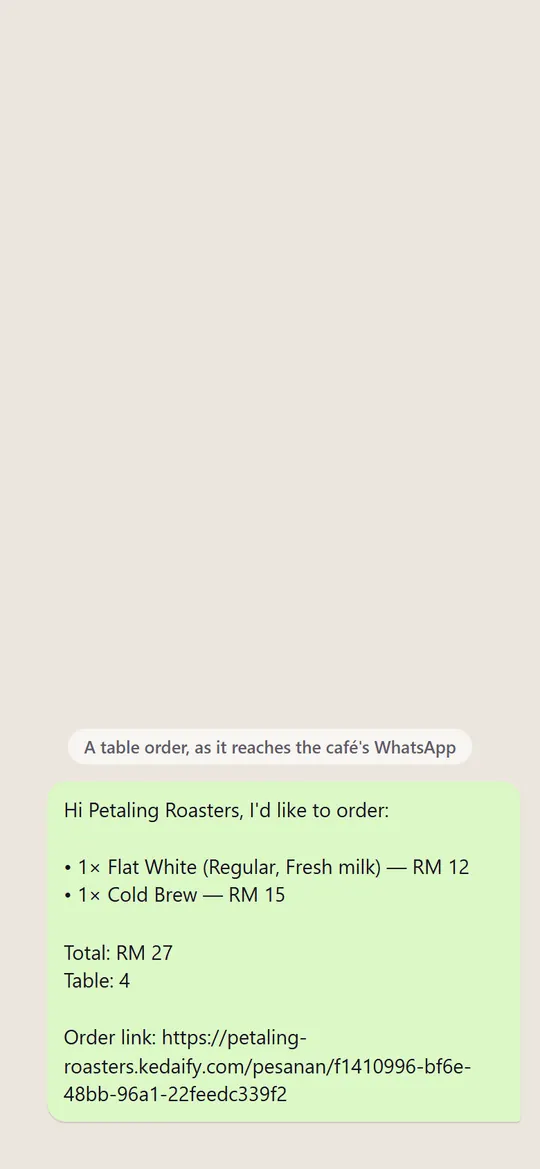
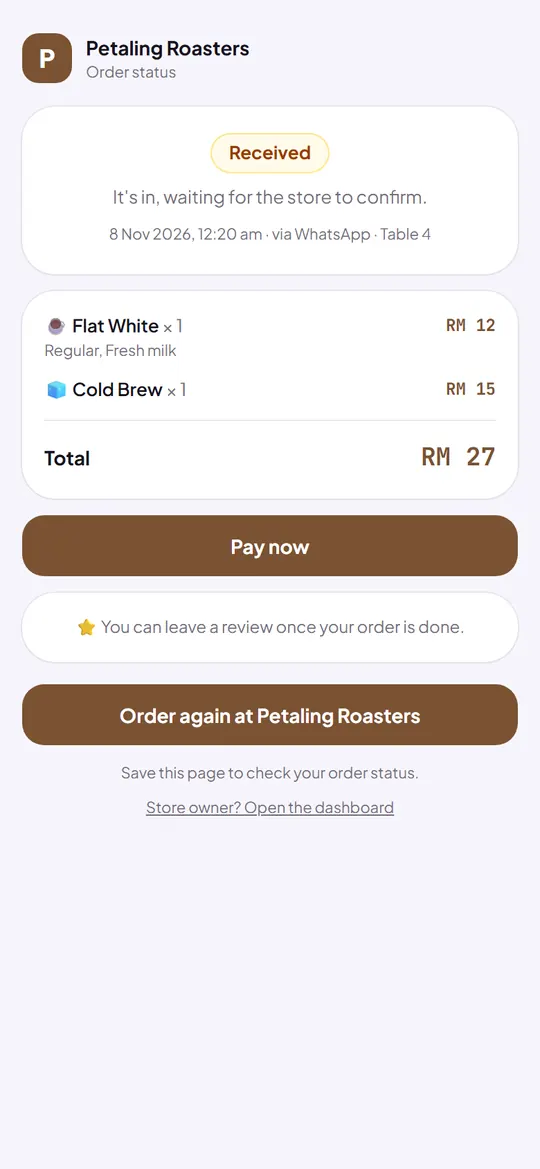
It reaches your WhatsApp, and your dashboard's order list, marked Table 4. You carry it to the right table.
- The menu link and ordering from the table: Free
- Printed table cards and the poster: Pro
- The 14-day Pro trial: print them right away
- Not a payment code: it opens your menu
What a QR menu is, and what it changes
A QR menu replaces, or sits beside, the printed menu. A guest points their camera at a code on the table, and your menu opens on their phone: photos, prices, what's in each dish. Nothing to wipe down, nothing to reprint when a price changes.
Most QR menus stop there, and the guest still waves for a server. When the menu can also take the order, the guest orders when they're ready, and you skip the walk to the table and back. That matters most at lunch, when every table wants to order at once.
Scan at the table, and the table number comes along
Every table gets its own code. The code opens your menu with the table number attached, and a banner tells the guest which table they're at, so they don't have to type it or remember it.
Table ordering works on the free plan. The code just has to open your link with the table number at the end: yourshop.kedaify.com/?meja=4 is Table 4, and any QR maker can turn that into a code. Pro makes the whole set for you, one per table, ready to print.
A menu that keeps itself current
Change a price or add a dish from your phone and the menu changes for the next guest who scans. Mark something sold out and it stays on the menu but can't be ordered, so nobody falls in love with the last slice of cake after it's gone.
Your best sellers get a label on their own, from what actually sells. And the top of the menu shows whether you're open now, taken from your opening hours.
Guests order without waiting for a server
Guests add dishes and drinks to a cart and choose their options, like the size of a coffee or the milk that goes in it, each with its price. The cart shows their table and the total before they send it.
A second round is the same: scan again, or open the order page they already have, and add more. Nobody has to catch a server's eye to ask for another coffee.
The order reaches you with the table on it
The order goes to your WhatsApp with every item, the options, the total and the table number, in the same layout every time. Whoever holds the café phone can read it out to the bar or the kitchen at once.
The order is in your dashboard's list from the moment the guest taps send, even if the chat never goes out, and the dashboard can ring your phone when one comes in. If you've added your payment QR or bank account, guests can also pay and send the order without opening WhatsApp.
The guest can follow their order
After sending, the guest has a page for their order that shows when it's been received and when it's done. They can order the same again from it, or leave a review once they've eaten.
If they pay before leaving by bank transfer or e-wallet, the same page has the exact amount and your account details, and you mark it paid when the money's in.
Making the codes for your tables
On Pro, set your number of tables in Settings, then open Share and choose Table QR. Kedaify makes a card for every table, carrying your shop's name and colour and the table number, ready to print, plus a poster for the door or the counter that opens your menu. Print them on sticker paper or slide them into table stands.
On the free plan you can make the codes yourself with any QR maker, from your link with the table number at the end. Your first store has Pro free for its first 14 days, so you can print the whole set while you try it.
How to start
- Create a free storeSign in with Google or email and choose your country and the food and drink type of business.
- Add your menuAdd dishes and drinks with photos, prices and options like size or milk.
- Make the table codesPrint the set from Pro, or make a code per table from your link with ?meja= and the table number.
- Put them on the tablesStick a code on each table and a poster at the door, then watch the first orders come in.
What's free, and what Pro adds
These lists come straight from the plans as they are today.
Free
Free for good.
- A photo catalog with categories and search, in 1, 2 or 3 columns
- Guests scan the QR on their table and order; the table number comes along
- Options and add-ons with their own price, like size, milk or toppings
- A cart that reaches your WhatsApp as one tidy message
- Best seller labels on their own, and how many are left when stock runs low
- Open or closed, shown on its own from your opening hours
- An order status page, and reviews from real buyers
- No commission. Buyers pay you directly, and Kedaify never holds the money
Pro
Your first store gets Pro free for 14 days. Outside Indonesia, Pro is then US$3.99 a month or US$29.99 a year by card.
- Table QR & QR poster. Guests scan at the table and order; a poster ready to print.
- Bills per table, tax & service. Open a bill per table, pay at the end; tax and service on the receipt.
- Kitchen tickets. Print orders for the kitchen in one tap; only additions print again.
What it can't do yet, and who it suits
Better to know now than after you've set it up.
What it can't do yet
- Payments at the table aren't confirmed by themselves. You check your account, then mark the order paid
- The printed table cards and poster are Pro. Your first store can print them during its 14-day Pro trial, and printed cards keep working after it ends. On the free plan you make each table's code yourself from your link
- Orders don't print in the kitchen by themselves. Kitchen tickets are Pro, and you print them from the dashboard
A good fit for
- Cafés and small restaurants where the lunch rush outruns the servers
- Kopitiams, food stalls and bars that want menus they can change in seconds
- Places that print new menus every time a price goes up
Not a good fit for
- Restaurants that need orders sent straight to a kitchen printer without a phone in between
- Places that want table payments confirmed automatically, without checking the account
Questions people ask
What is a QR menu?
A menu that opens on a guest's phone when they scan a QR code, usually on the table. With Kedaify the menu can also take the order and send it to your WhatsApp with the table number.
Is the QR menu free?
The menu link and table ordering are free, with no commission. A ready-to-print set of table codes and a poster come with Pro, which your first store can try free for 14 days.
How do I make a QR code for each table?
On Pro, Kedaify makes the set for you. On the free plan, use any QR maker with your store link plus ?meja= and the table number, for example yourshop.kedaify.com/?meja=4 for Table 4.
Do guests need an app?
No. Their phone camera opens the menu in the browser. The order goes through WhatsApp, or straight to you when they pay to your payment QR or bank account, if you've added them.
Can I change prices after the codes are printed?
Yes. The codes open your live menu, so a new price or a sold-out dish shows straight away and the printed codes keep working.
Does it work outside Indonesia?
Yes, in any country, with the menu in English and prices in your own currency.