New feature · 4 min read
Branch reports, tax and accountant export
Profit and loss and cash flow tell you how much you made. Once a store has several branches and several people on the till, more questions come up: which branch is falling behind, which cashier voids often, which tax hasn't been paid, and how all of this reaches your accountant. It is now all in Kedaify Business, from the same records. All examples below use the Katong Kopi demo store, with made-up October figures.
1. Compare branches, with targets
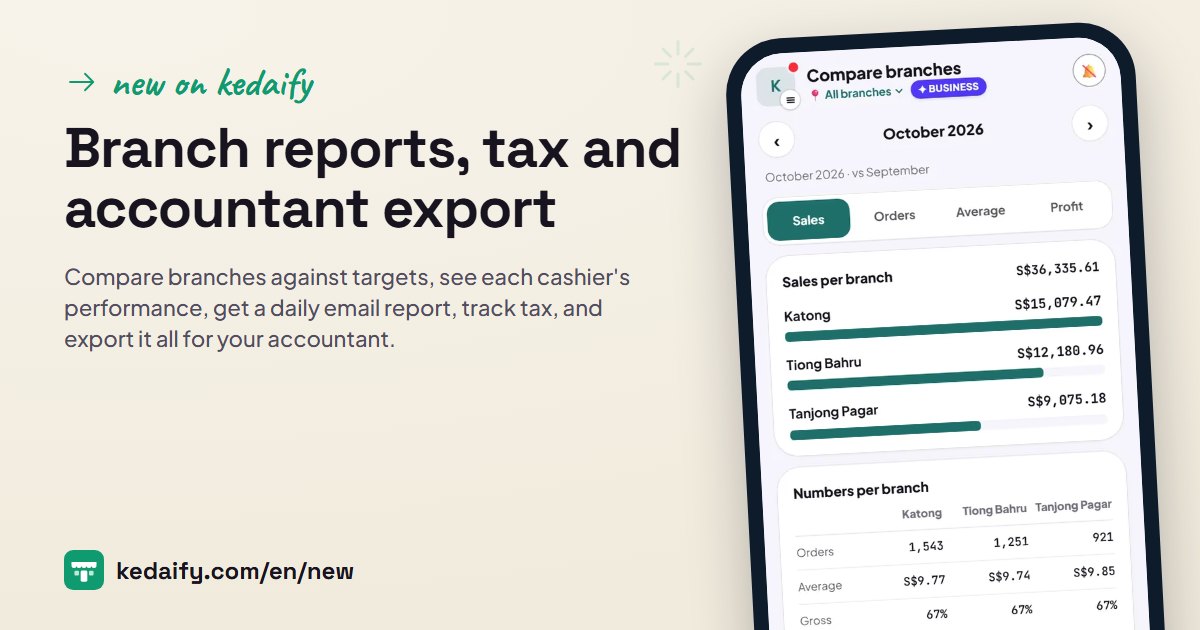
Sales, transactions, average sale and profit for each branch on one screen, against last month and week by week. Set a monthly target per branch and see what percentage is reached.
- Switch what you compare: sales, transactions, average sale or profit.
- Each branch's cash difference from End of day is shown too.
- A short note names the biggest change from last month.
How to use it: Open the menu from the store logo → Reports → Compare branches.
2. Each cashier's performance
For everyone who works the till: number of transactions, sales, average sale, how many were voided, discounts given, discounts given without manager approval, cash difference at End of day, and hours worked from shifts.
- Anything that stands out is flagged, for example voids above the store average or discounts without approval.
- Managers can read it for their branch. Cashiers can't open it.
- There is no buyer data in this report.
How to use it: Reports → Cashier performance.
3. A home for all branches, and a daily report by email
When you view All branches, the Summary opens with today's sales per branch, who is on shift, and a list of things to look at: low stock, yesterday's cash difference, or online orders not yet handled. Each evening, that day's summary can be emailed to you.
- The daily report is sent around 10 pm Jakarta time (WIB), to the owner and, if you like, to managers.
- Days with no sales and nothing to look at don't get an email.
- Turn it on or off at any time under Profit & loss → Daily report by email.
How to use it: Summary → All branches. Daily report: Money → Profit & loss → Daily report by email.
4. Financial position, equipment, and supplier debts
What the store owns (cash and bank, money owed to you, stock, equipment) and what it still owes (unpaid tax, debts to suppliers), with the owner's equity as the difference.
- Record equipment such as an espresso machine once. Its value is written down each month and the depreciation goes into Profit & loss.
- Purchases paid later are recorded as supplier debts, then marked paid from the account you choose.
- Only the owner and the accountant can open the financial position.
How to use it: Money → Financial position → + Add equipment or + Record debt.
5. Export, and an accountant on your team
Download a month's reports as a PDF, Excel, or a CSV journal for accounting software. Invite your accountant to the team: they can read all reports and books, can't change anything, and don't see buyer data.
- The PDF holds profit and loss, cash flow, financial position, tax and profit per branch.
- The Excel file has one sheet per report, ready to work with.
- You can have an email sent to your accountant automatically each time a month's books are closed.
How to use it: Money → Export & accountant. To invite your accountant: Settings → Team & access → Invite, choose Accountant.
Questions about this release
Are these official reports?
No. They are simple reports from your store records. Tax here is an estimate, not an official figure. For tax filings or a bank loan, ask your accountant or tax adviser to check them.
Does my accountant need to pay or install an app?
No. They are invited through Team & access and open the dashboard in a browser. They count as one person on the team, out of the 10 included in Business.
What can't an accountant see?
Orders, buyer data, POS, Menu and Settings. An accountant can only read reports and books, and can't change anything.
When is the daily report sent?
Around 10 pm Jakarta time (WIB, UTC+7) for that day. For example, a store in a UTC+8 time zone gets it around 11 pm.
What if I have only one branch?
Cashier performance, Tax, Financial position and Export still work. Compare branches and the All branches home only become useful once you have a second branch.