New feature · 4 min read
Every store setting now lives in the dashboard
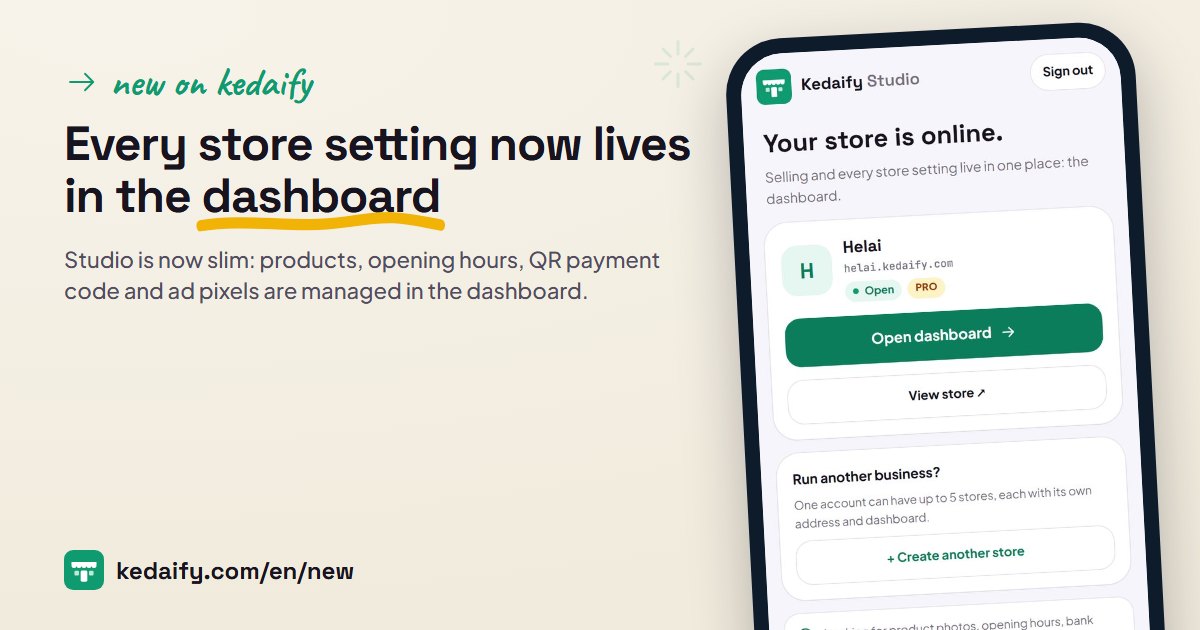
There used to be two places to manage your store: Studio and the dashboard. Now there is just one. Studio is only the front door: sign in, create a store, then go straight to the dashboard, where selling and all your settings live. Stores with thousands of products now fit too.
1. Studio is now slim
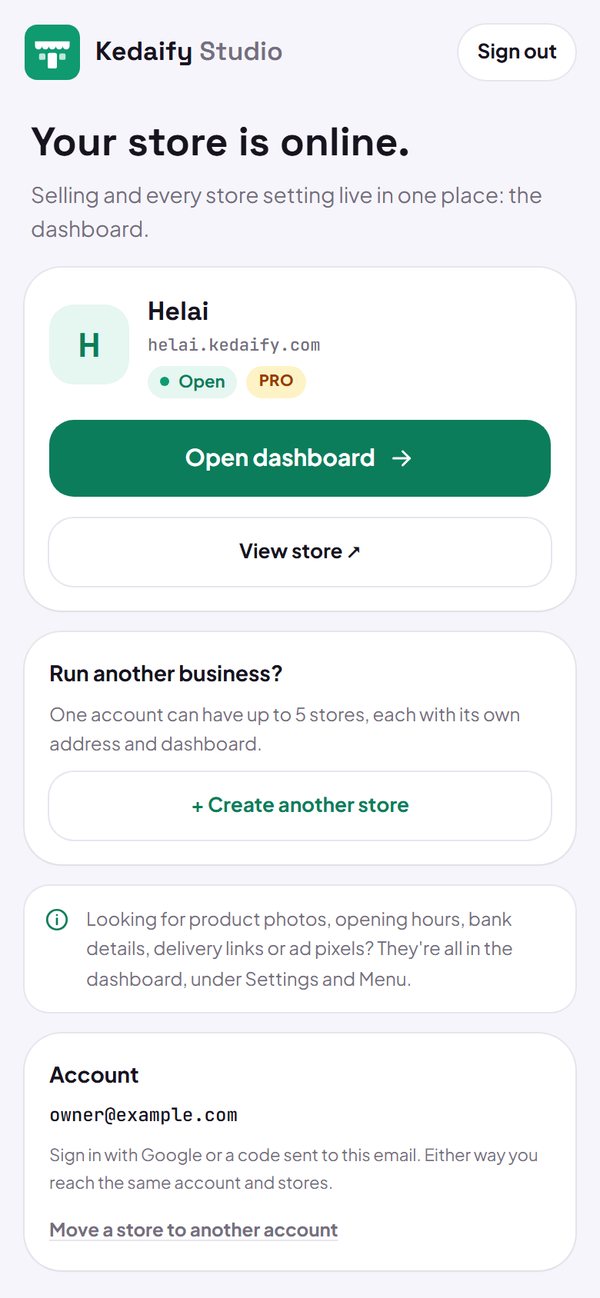
Studio is now just for your account: sign in, create a new store or claim a store from the admin, and the starting details when a new store is made. After that there's one button: Open dashboard. What you used to set in the Studio editor (product photos, prices, variants, opening hours, QR payment code, bank account, delivery app link, ad pixels) now lives in the dashboard.
- No more two editors that can overwrite each other: what you save in the dashboard stays saved.
- Settings you filled in Studio are not lost; they all show in the dashboard.
- Signing in with Google or an email code still leads to the same account and store.
How to use it: kedaify.com/studio → Open dashboard.
2. Products in Menu, settings in Settings
In the dashboard, products are managed from the Menu tab: photos, promo prices, variants, stock, bulk upload and bulk photos. Store settings are in the Settings tab: at the top is the Store checklist, a list of what you haven't filled in yet, then the settings grouped as Store, Sales, Grow, and Account & plan.
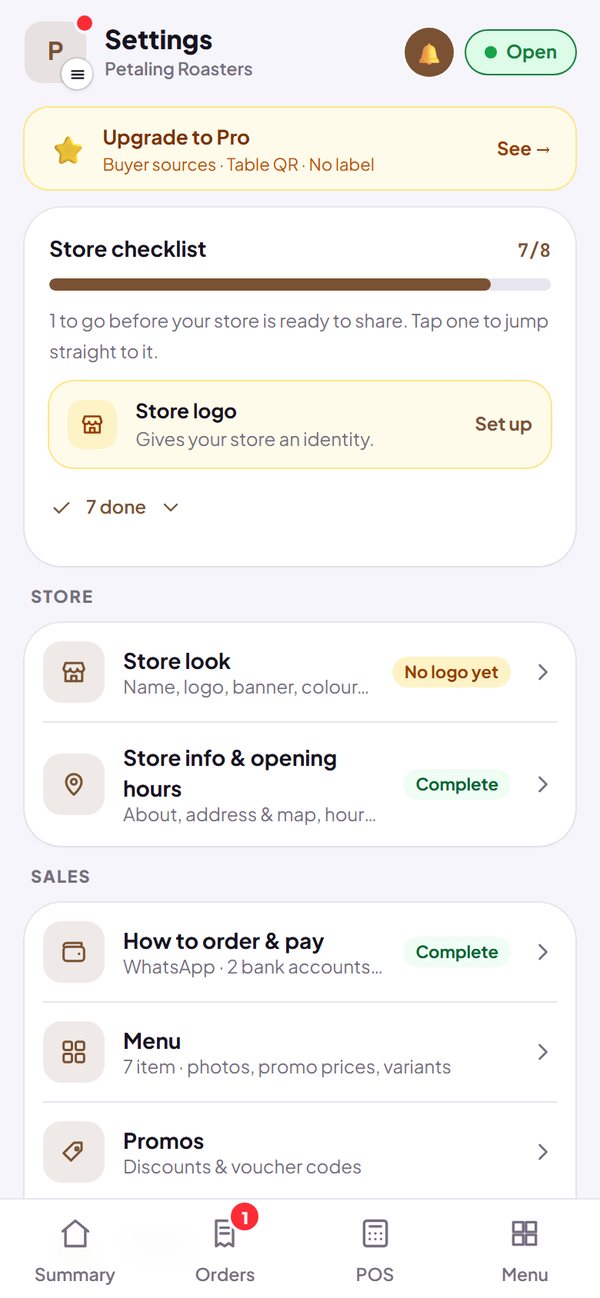
- Each part saves on its own, so changing your opening hours never touches your products.
- Orders, POS, promotions and reviews are in the same dashboard.
How to use it: Dashboard → Menu and Settings.
3. Big catalogues: up to 10,000 products
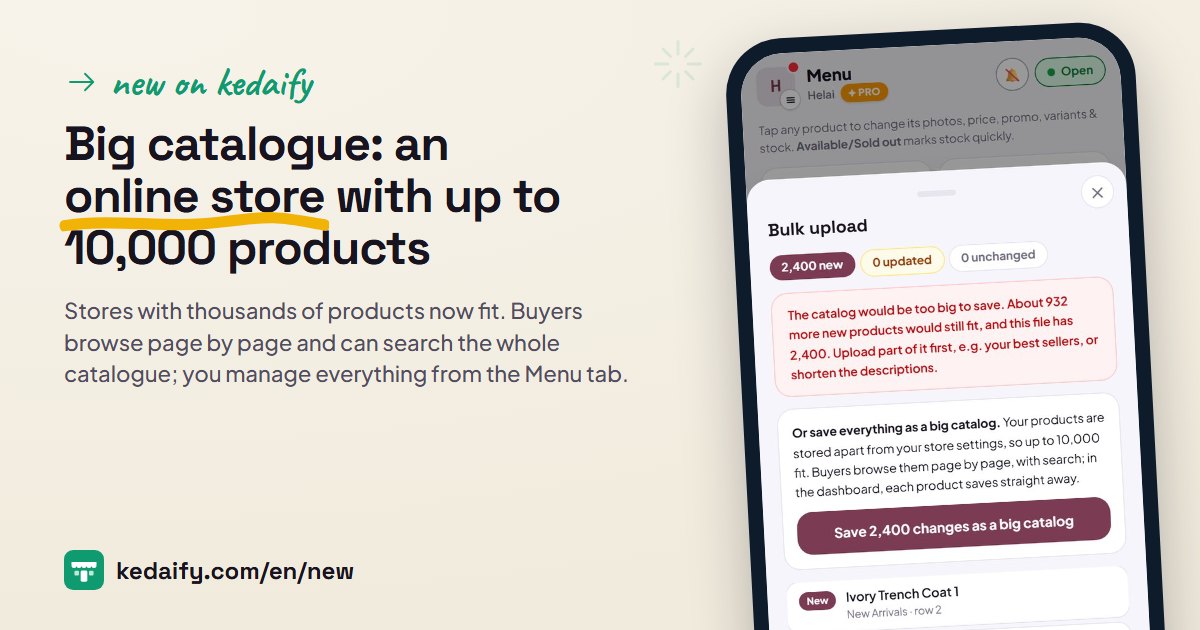
A regular store fits roughly 200 to 800 products, depending on how long the descriptions are. Have more, for example when moving from another marketplace? When your Bulk upload file is too big, choose Save as big catalogue. Buyers see your products page by page, with categories and search, and the next page loads by itself as they scroll.
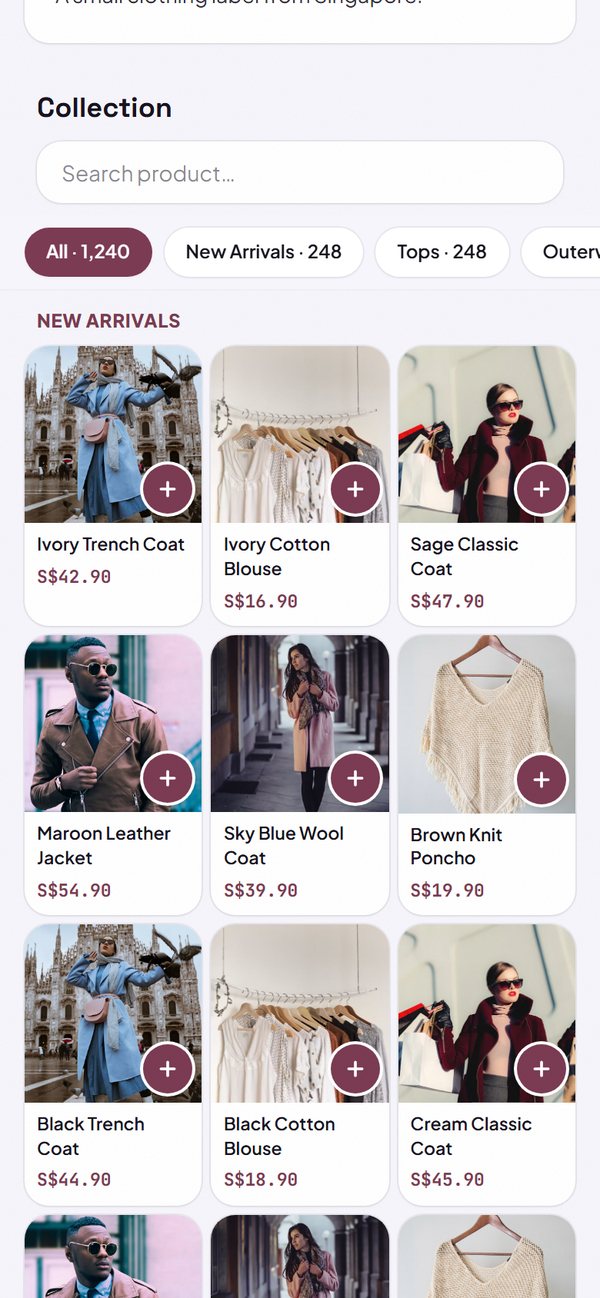
- Search looks through the whole catalogue, not just what's on screen.
- The number of products per category shows on the category buttons.
- More than 100 products is part of Pro, including during the Pro free trial; regular stores stay as they are.
How to use it: Dashboard → Menu → Bulk upload → Save as big catalogue.
4. Manage thousands of products from the dashboard
In the Menu tab, find a product by its name or code, filter by category, and mark items In stock or Sold out. Every change saves straight away, with no Save button. With Pro, Bulk upload and Bulk photos still work, and only the products that changed are saved. In POS, search the whole catalogue.
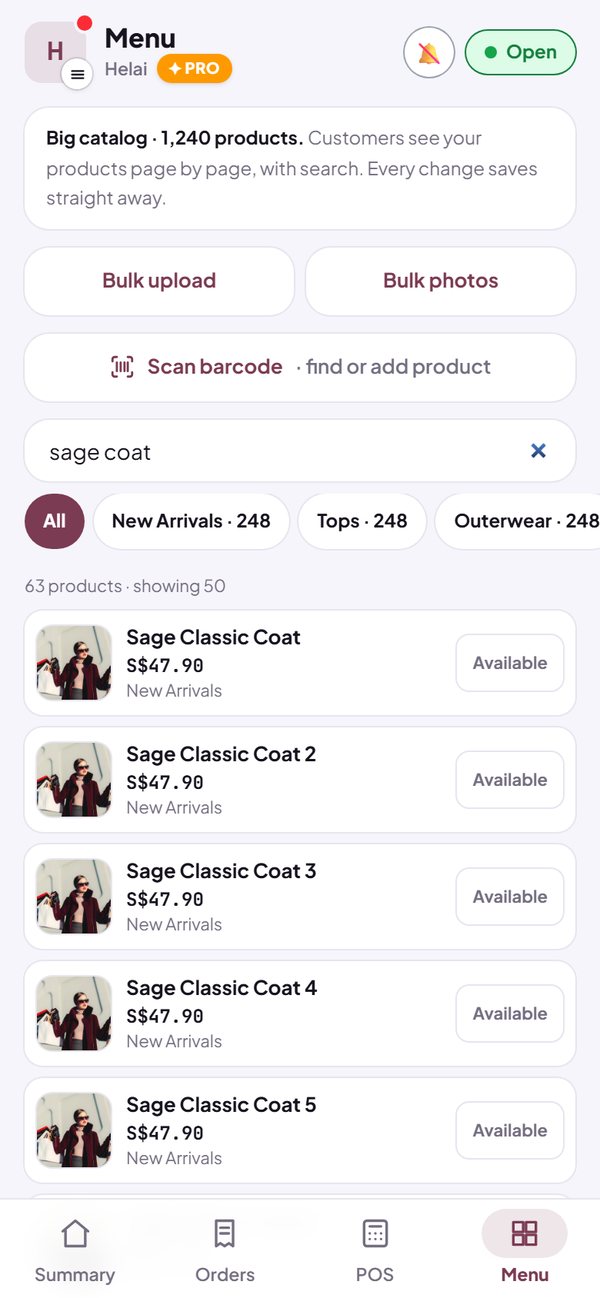
- Stock counting per product or per size still works.
- You can set the category order from the Menu tab.
How to use it: Dashboard → Menu.
Questions about this release
Is Studio being removed?
No. Studio is still used to sign in, create a new store, claim a store from the admin and set the starting details of a new store. Store and product settings are now managed from the dashboard.
Did my Studio settings disappear?
No. Everything you ever filled in in Studio is still saved and shows in the dashboard: products in the Menu tab, other settings in the Settings tab.
Where do I now set my QR payment code, opening hours or ad pixel?
In Dashboard → Settings: the QR payment code and bank account under How to order & pay, opening hours under Store info & opening hours, and the pixel under Ads & tracking.
How many products fit?
The Free plan allows up to 100 products. Pro, including the 14-day free trial, allows up to 10,000 products per store: a regular store fits roughly 200 to 800 products depending on description length, and anything above that is saved as a big catalogue.
Is the big catalogue a paid feature?
More than 100 products needs Pro. During the 14-day Pro free trial everything is open, including the big catalogue. After the trial, all products stay on sale and can be edited one by one; adding products or using bulk upload needs Pro.
Can a big catalogue be turned back into a regular store?
Not yet. The big catalogue is for stores with too many products for a regular store; buyers still see the same store.