New feature · 3 min read
End of day: know exactly what's in the cash drawer
A busy POS store has one question every night: does the cash in the drawer match the sales? Now there is End of day. Kedaify adds up the POS sales since the last End of day, works out the cash that should be there, and you just count the money. Any gap shows straight away and is saved. End of day is on Pro; POS itself stays free.
1. POS sales by payment method
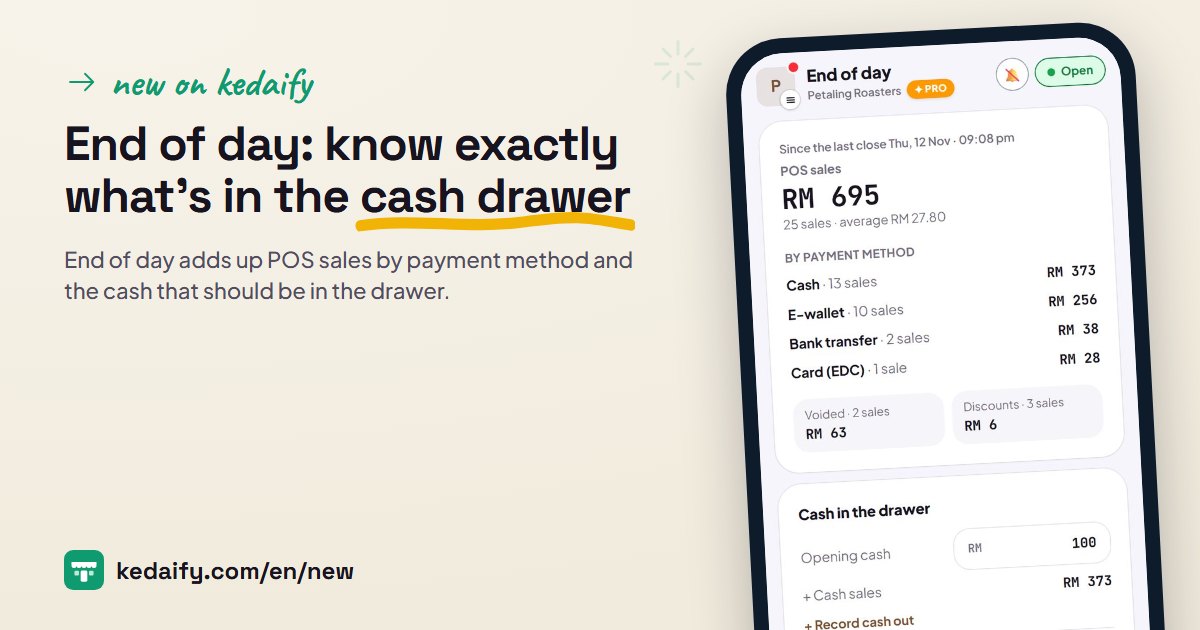
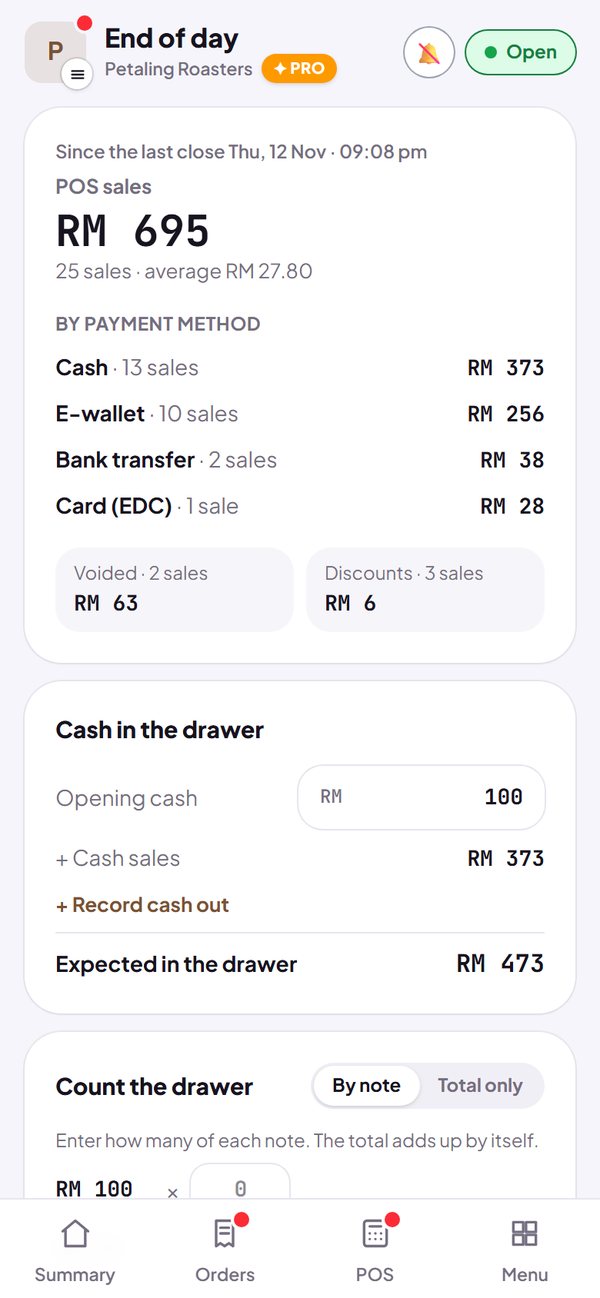
When you open it, End of day shows the POS sales since the last End of day: the number of sales, the average, and the total for each payment method (Cash, QR, Transfer, Card, E-wallet). Cancelled sales and the discounts you gave show separately.
- A payment split between two methods is counted under each method.
- Sales still saved offline on that phone are sent first, so they are counted.
How to use it: POS → End of day, or tap the store logo → End of day. Pro plan.
2. The cash that should be in the drawer
Opening cash plus cash sales, minus cash out, gives the amount that should be in the drawer. Opening cash comes automatically from the money you left in the drawer at the last End of day, and you can change it.
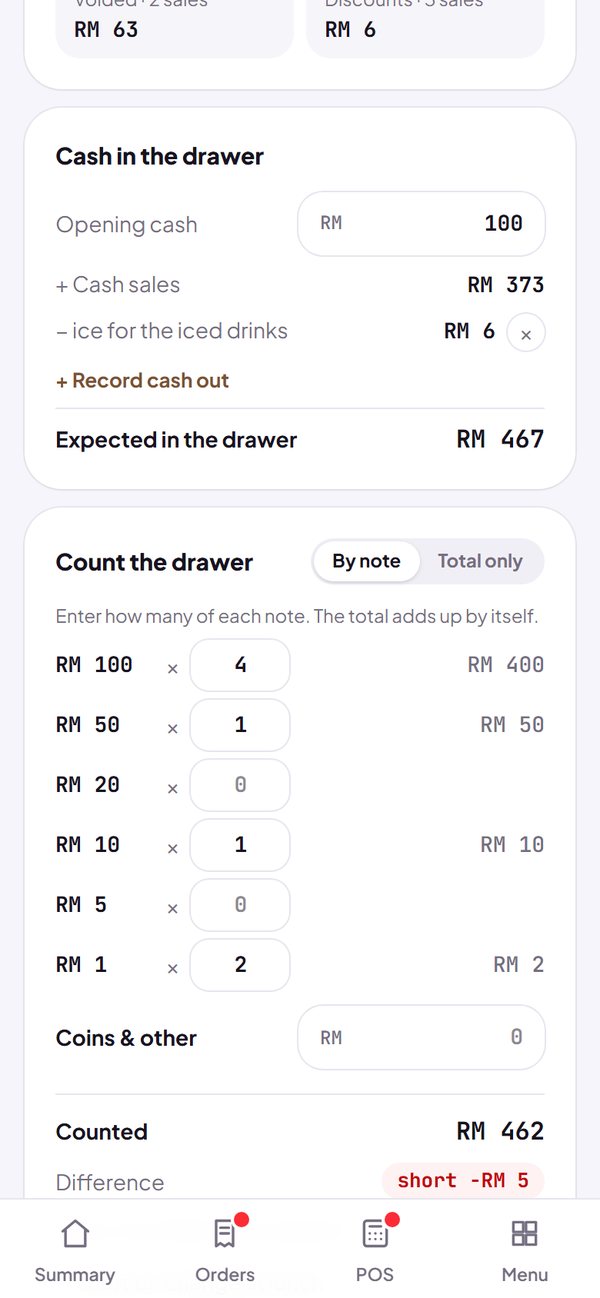
- Took money from the drawer to buy ice or a water jug? Record it as cash out, with what it was for.
- A wrong cash out can be deleted until the day is closed.
How to use it: End of day → Cash in the drawer → + Record cash out.
3. Count the money, see the gap
Enter how many notes of each value you have, plus the coins, or just type the total. Kedaify shows the gap right away: exact, short or over. If there is a gap, write a short note on why, so you aren't guessing later.
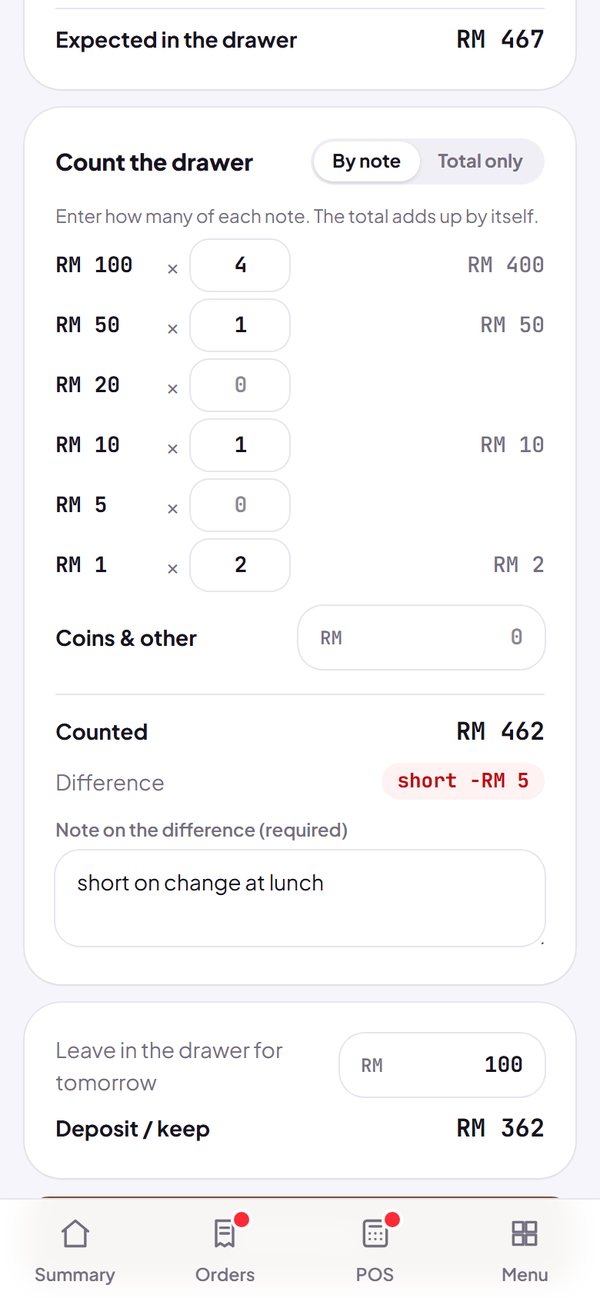
- Also enter the money you leave in the drawer for tomorrow; the rest is written as the deposit.
- If a new sale comes in before you close, the numbers update first so you can check again.
How to use it: End of day → Count the drawer → End of day.
4. Z report: print or share
Once closed, the Z report appears: sales, by payment method, cash drawer, the gap and your note. Print it on a 58 mm Bluetooth receipt printer, or share it as an image to the owner's WhatsApp.
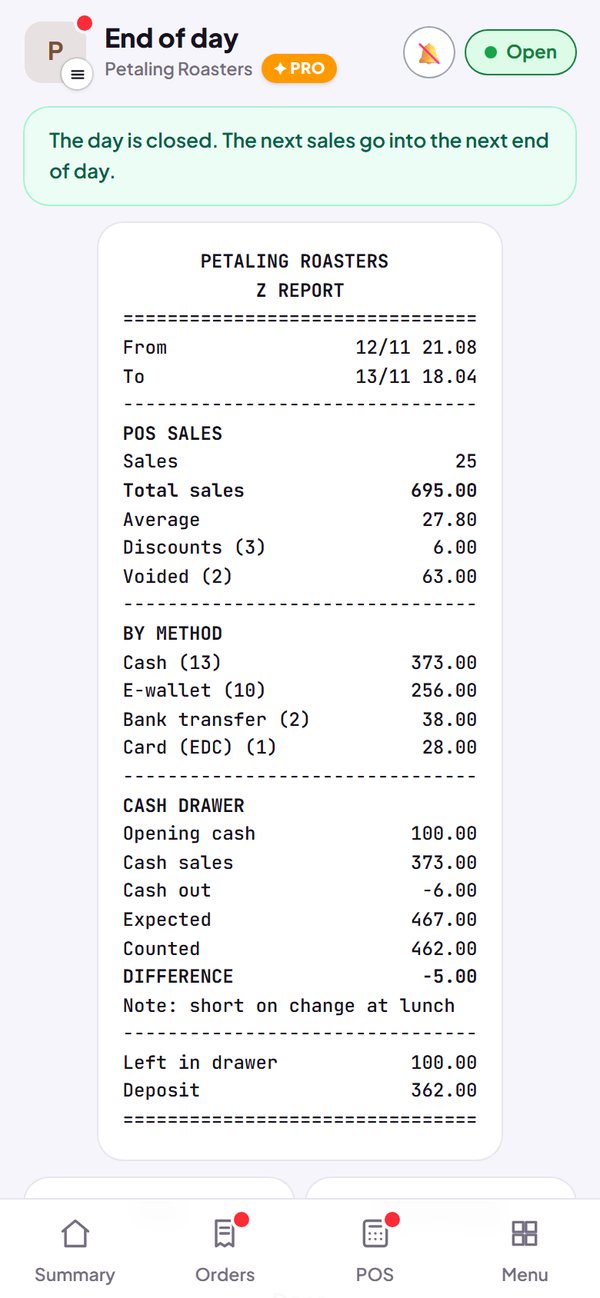
- A closed report stays as it was counted, even if a sale is cancelled later.
- Later sales go into the next End of day.
How to use it: Shows up after End of day. Print it again from History.
5. End-of-day history
Every End of day is saved, newest first, with the number of sales, the sales total and the gap. At the top is the total gap for the last 30 days, so you can tell whether small gaps happen often. Tap a row to open its Z report again.
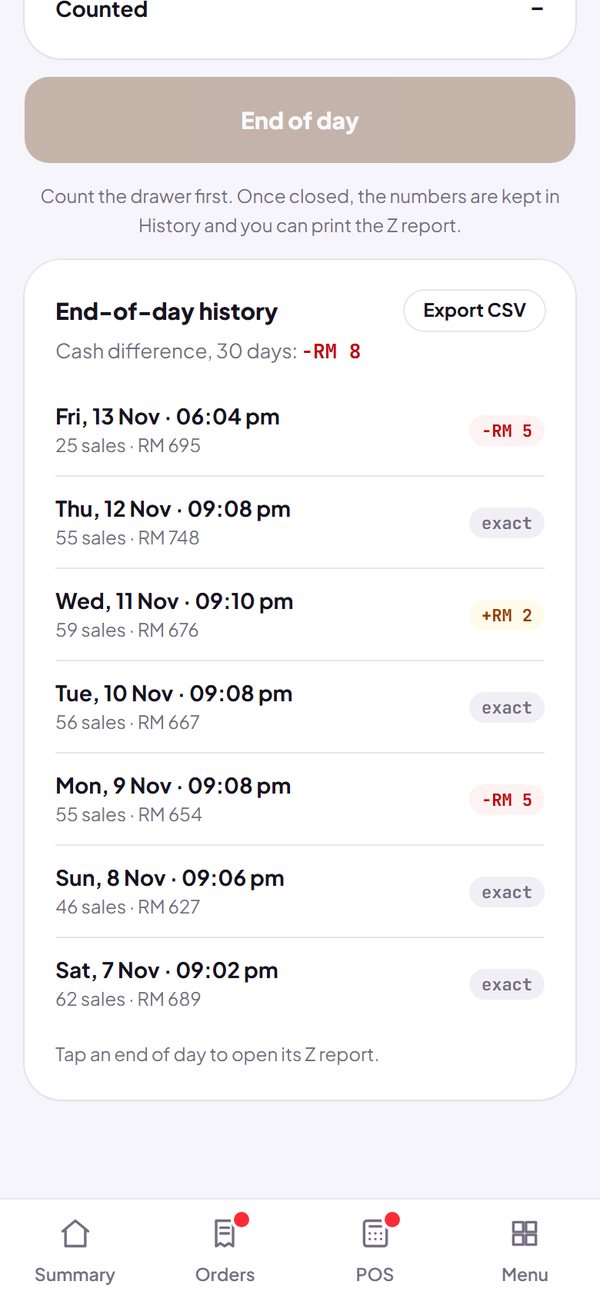
- Export the history to CSV for your bookkeeping.
How to use it: End of day → End-of-day history.
Questions about this release
When should I do End of day?
At the end of the day or the end of a shift. One End of day covers the POS sales since the last one, so you can do it more than once a day.
Are online orders counted?
No. End of day counts POS sales, because those are the ones where money goes into the drawer. Online orders stay in Summary and Orders.
What about sales saved offline?
Open End of day while the phone is online: sales saved on that phone are sent first. A sale that only arrives after the day is closed goes into the next End of day, so it isn't lost.
I'm on the Free plan. What can I still use?
POS, receipts, QR and other payment methods, discounts and cancelling a sale all stay free. End of day opens up when your store is on Pro.