New feature · 3 min read
See your gross profit and busiest hours
Big sales don't always mean big profit. Now you can enter the cost of each product, which is what the ingredients and packaging for one item cost you. From that, Kedaify works out your gross profit, shows which products earn the most, and maps the hours your store is busiest. Entering costs works on every plan; the reports are on Pro.
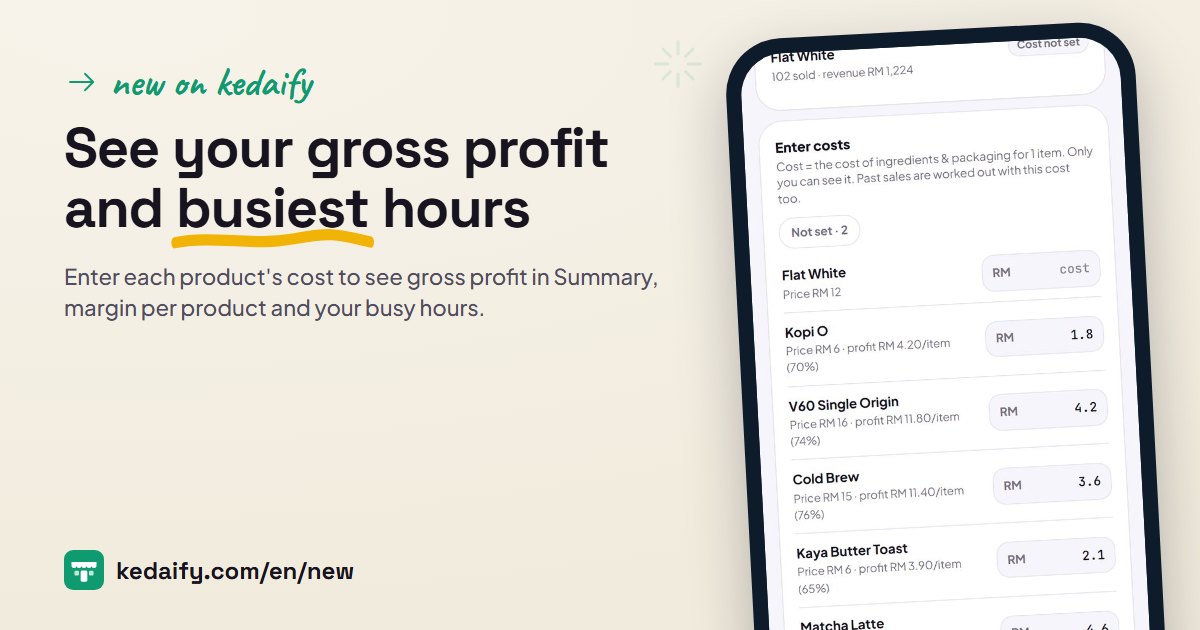
1. Enter the cost of each product
The cost is what the ingredients and packaging for one item cost you. Enter them one by one in Edit product, or all at once in the Enter costs list in Products & margins. As you type, you see the profit per item and the percentage straight away. Costs never show in your store; only you can see them.
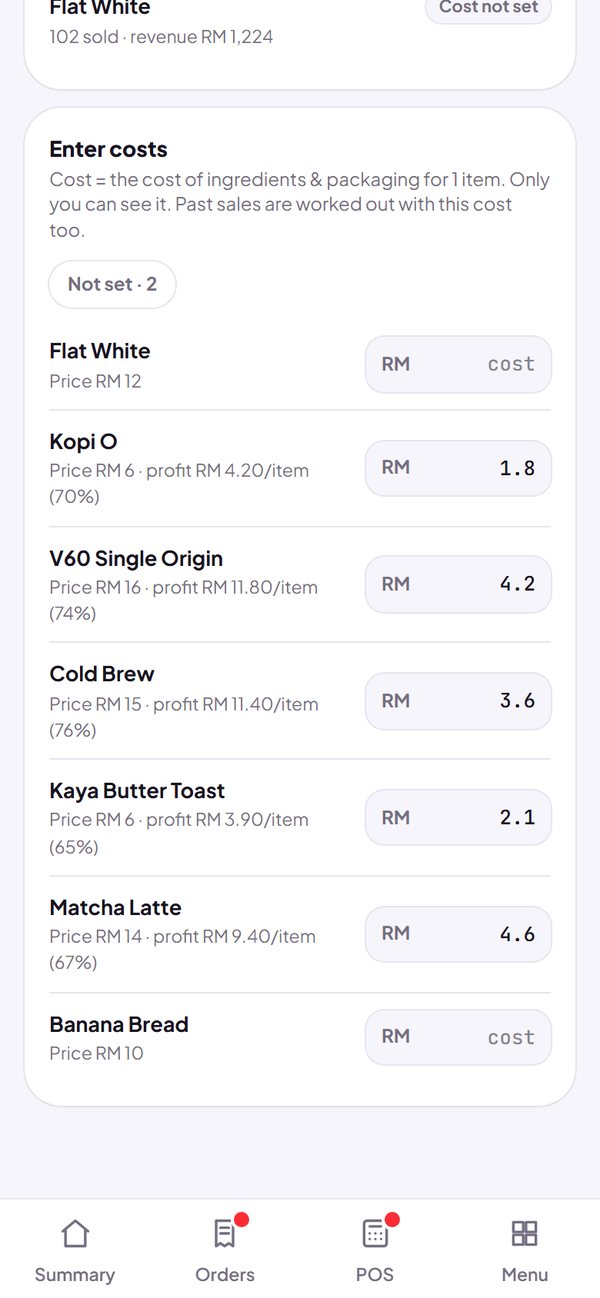
- The cost is saved with every sale, from the online store and from POS. If a cost changes later, old sales keep the cost they had then.
- Sales made before you entered a cost are counted with the current cost.
- Entering costs works on every plan, including Free.
How to use it: Menu → Edit product → Cost per item, or store logo → Products & margins → Enter costs.
2. Gross profit in Summary
Under your sales, the Gross profit card shows sales minus costs for the range you pick, with the margin as a percentage. It is counted the same way as the sales above it: orders marked Done.
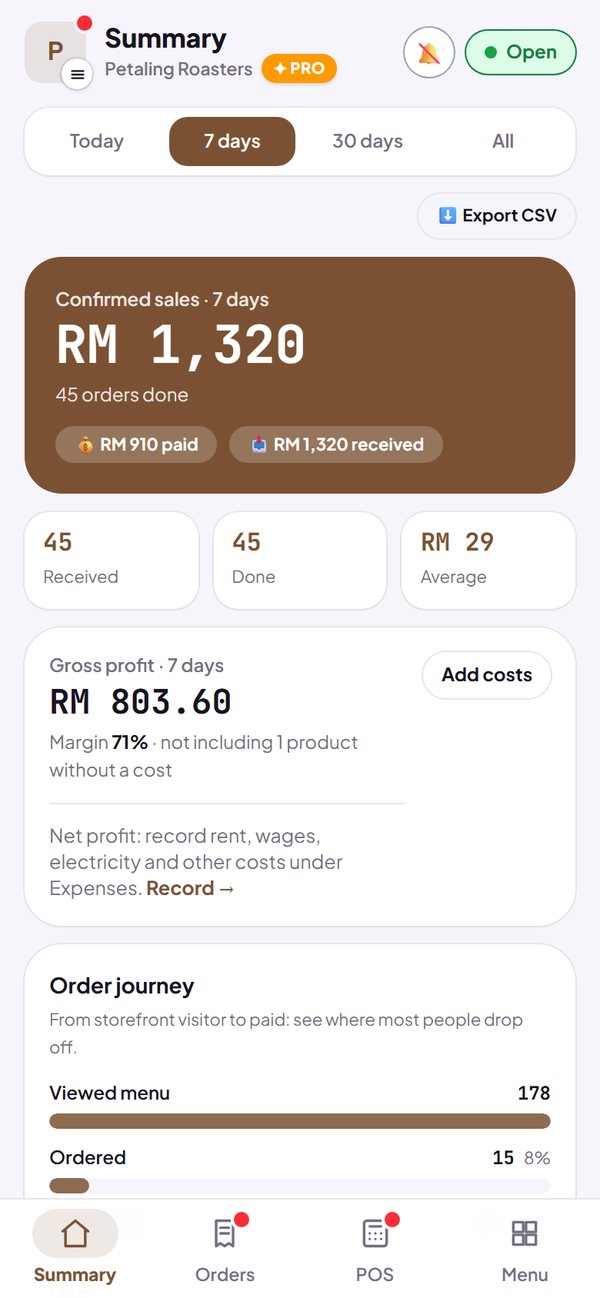
- Products with no cost yet aren't counted as profit. The card tells you how many products still have no cost.
- Discounts and vouchers are already taken off your sales before profit is worked out.
How to use it: Summary, under sales. Pro plan.
3. Products & margins
See the profit of each product, biggest first. Kedaify also sorts your menu into groups: stars (they sell well and earn well), busy but thin, profitable but quiet, and needs a check. Each group comes with a short tip.
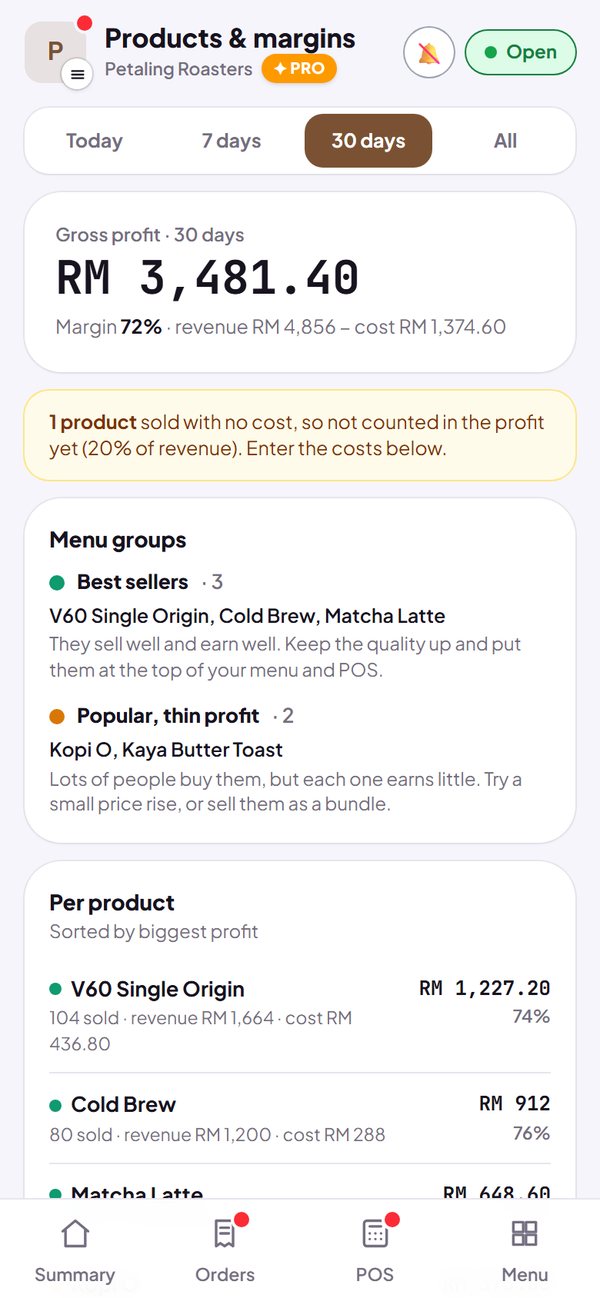
- The groups appear once at least three products have a cost.
- Pick the range: today, 7 days, 30 days or all.
How to use it: Tap the store logo → Products & margins. Pro plan.
4. Busy hours
A map of orders by day and by hour, from every channel: online, table QR and POS. The darker the square, the more orders. Tap a square to see the number of orders and the sales, and see the three busiest hours below it.
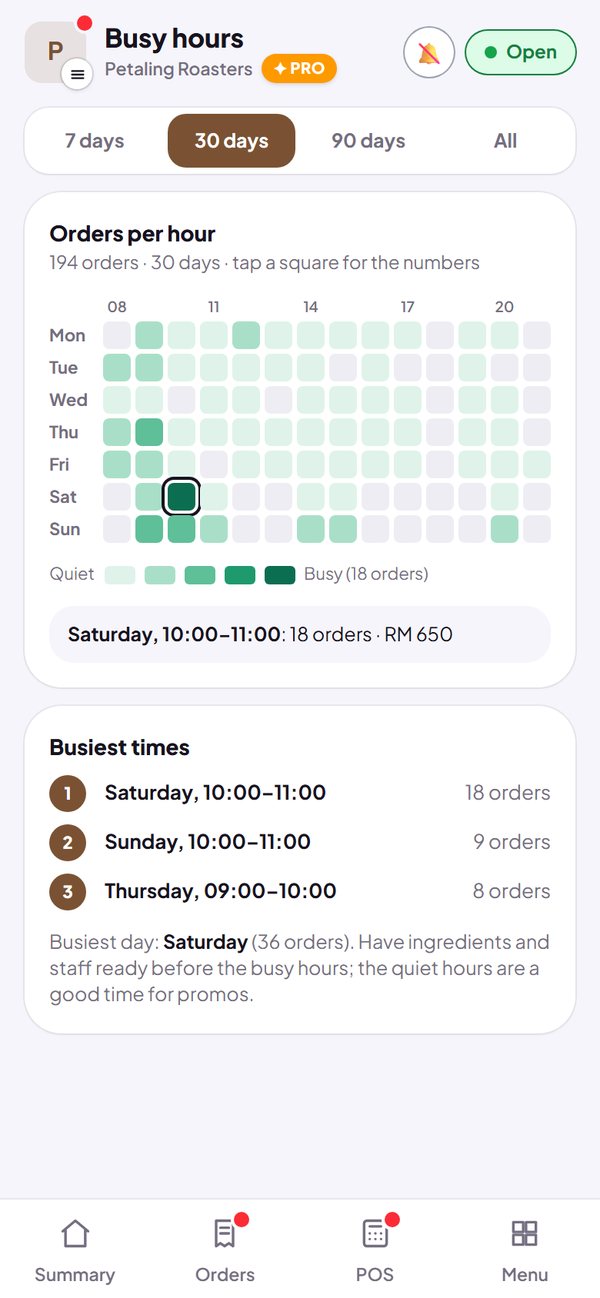
- Use it to plan ingredient stock and staff before the busy hours.
- Quiet hours are a good time for a promo.
How to use it: Tap the store logo → Busy hours. Pro plan.
Questions about this release
Can buyers see my costs?
No. Costs are kept apart from your store data and only show in your own dashboard.
What is the difference between gross profit and net profit?
Gross profit is sales minus the cost of the goods sold. Other costs such as rent, wages and electricity are not taken off yet.
I'm on the Free plan. What can I use?
You can enter the cost of every product now. Gross profit, Products & margins and Busy hours open up when your store is on Pro, straight away with the sales you already have.
If ingredient prices go up, do old reports change?
No. Sales made after you entered a cost keep the cost they had when they sold. A new cost is used for the next sales, and for old sales made before any cost was ever entered.