New feature · 3 min read
Table bills, plus tax and service on the receipt
In cafes and eateries, orders often come in steps: drinks first, food after, then more. Now POS can open a bill for a table or a name. The bill is kept on the server, so other phones in your store see it and can add to it. New orders go to the kitchen as a ticket, and when you take payment, service charge and tax go on the receipt. This is on Pro; POS itself stays free.
1. Open bills by table or name
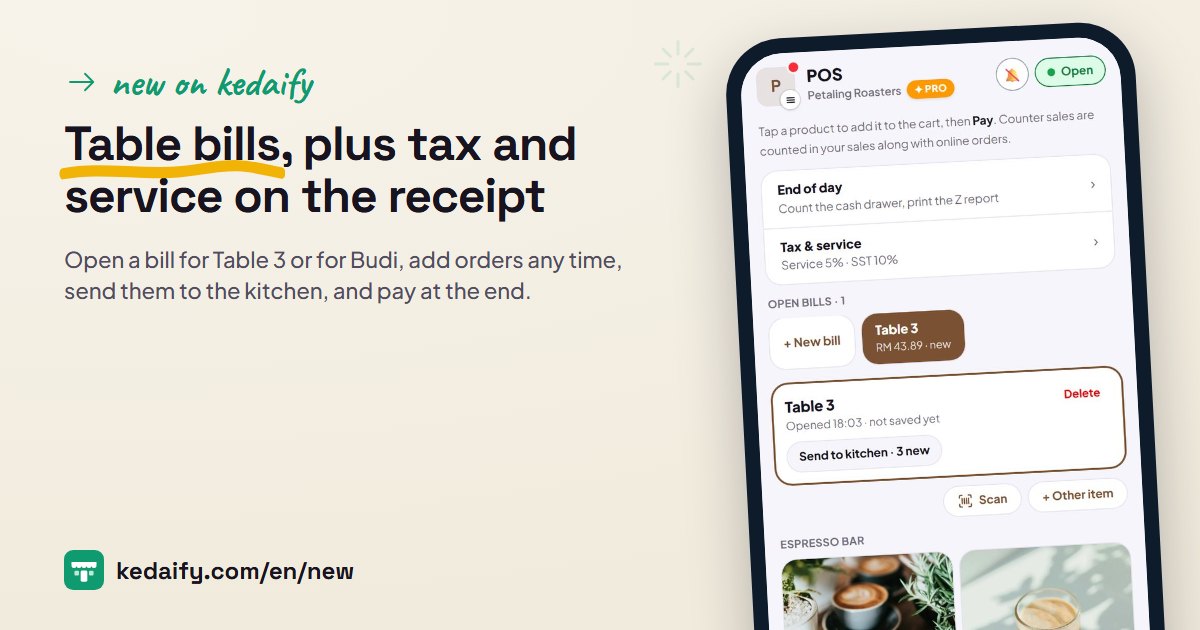
Tap + New bill, pick a table number or type a name. Add orders to that bill any time, save it, and serve the next customer. Several bills can be open at once; each bill shows its total and how long it has been open.
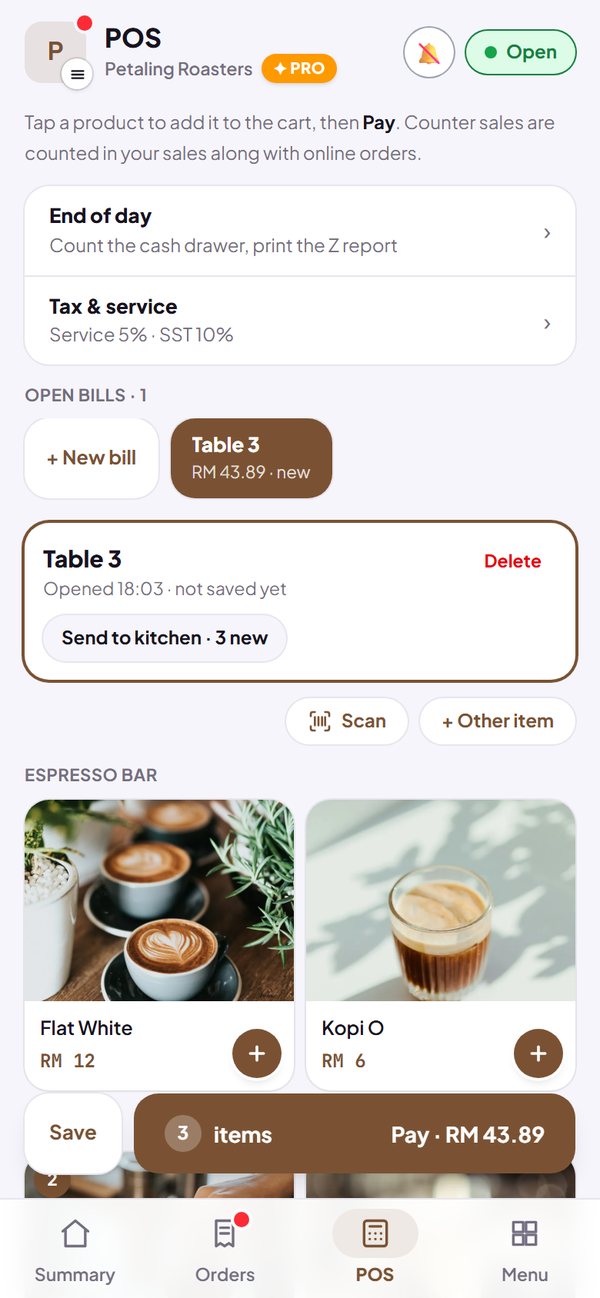
- Other phones that open your store's POS see the same bills and can add to them.
- If two phones change the same bill, the phone that saves last is told and shown the latest version. No order is quietly overwritten.
- Prices on the bill stay as they were when ordered, even if the product price changes meanwhile.
How to use it: POS → Open bills → + New bill. Pro plan.
2. Send to kitchen, only what's new
From an open bill, tap Send to kitchen. The kitchen ticket prints the table number and the order in large letters. The next ticket prints only what was added, marked ADDED; items that were taken off are written CANCELLED so the kitchen stops making them.
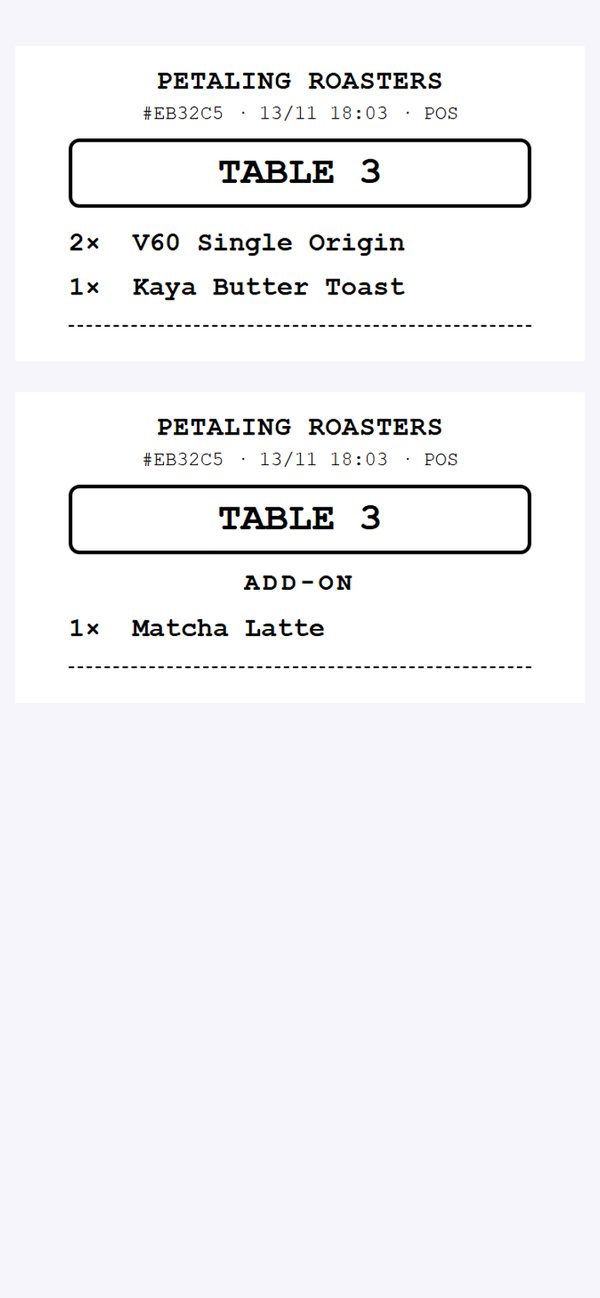
- Print to a 58 mm Bluetooth receipt printer, or through the browser print window to another printer.
- A direct dine-in sale can also print a kitchen ticket from its receipt screen.
How to use it: Open bill → Send to kitchen.
3. Tax and service, worked out for you
Set your service charge and tax once in POS → Tax & service. Choose the tax name (or write your own) and whether it is added on top of the price or already included in it. After that, POS works it out on every sale.
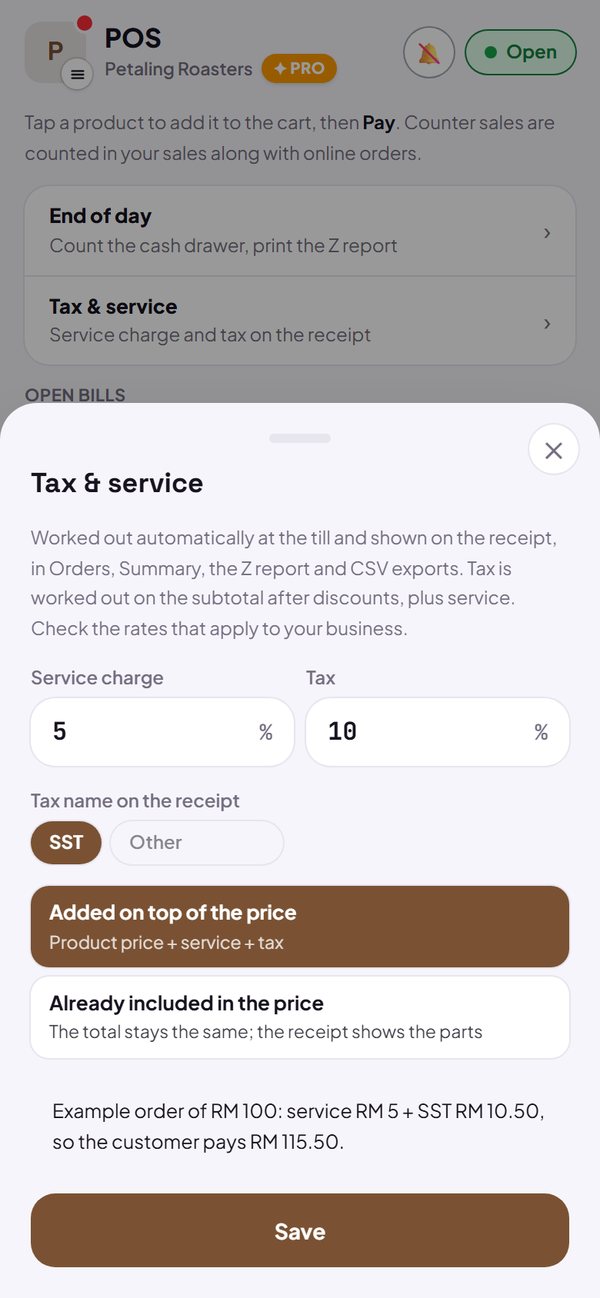
- Tax is worked out on the subtotal after discount, plus service.
- If it is already included in the price, the total doesn't change; the receipt shows the tax and service part inside it.
- Check the rates that apply to your business. Kedaify works from the numbers you enter.
How to use it: POS → Tax & service. Pro plan.
4. Pay at the end, everything recorded
When the customer is done, open the bill and tap Pay. Every POS payment method works, including splitting between two methods. The receipt shows subtotal, service, tax and total, and the bill disappears from the list on every phone.
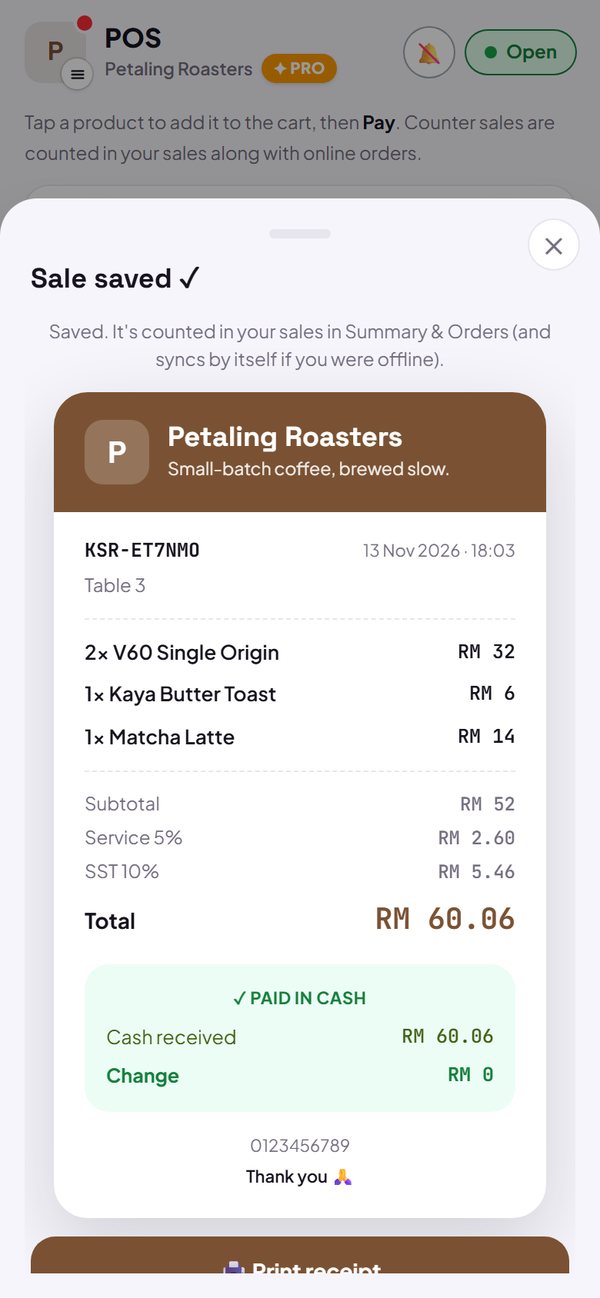
- Service and tax are also recorded in Orders, Summary, the Z report in End of day, and the CSV export.
- Gross profit in Products & margins doesn't count service and tax as product sales.
How to use it: Open bill → Pay.
Questions about this release
Do open bills need internet?
Yes, to open and save a bill, because bills are kept on the server so all your store's phones see the same thing. Normal POS sales still work offline. A bill paid while offline disappears from the list on that phone straight away, and is removed on the server once the phone is online again.
What if the customer leaves before paying?
Open the bill and tap Delete. The bill goes away without being recorded as a sale. Stock doesn't change either, because stock only goes down when the bill is paid.
Do online orders get tax and service too?
No. Tax and service here are for POS sales. Prices in your online store stay as you set them.
I'm on the Free plan. What can I still use?
POS, receipts, buyer name and table number, discounts, splitting between two payment methods, and cancelling a sale all stay free. Open bills, tax and service, and kitchen tickets open up when your store is on Pro.