New feature · 2 min read
A Google Maps review sticker, ready to print: customers scan and leave a review
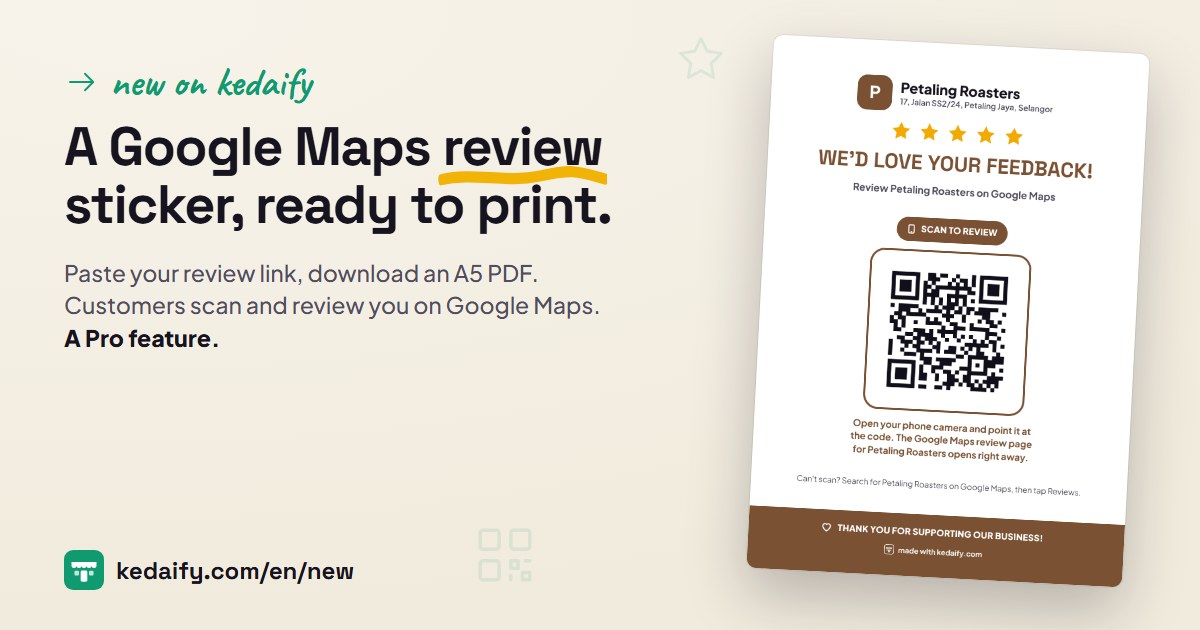
Reviews on Google Maps can make your store easier to find for people looking for a place nearby. The trouble is, customers rarely remember to leave one. Now there's a Google review sticker in Settings: paste your review link, download the PDF, print it and put it at the counter or on tables. A Pro feature.
1. Paste your store's Google Maps review link
Open Settings, then Google review sticker. Paste the link from your business profile on Google: tap Ask for reviews, then copy the link. Kedaify checks the link straight away and tells you where customers will land.
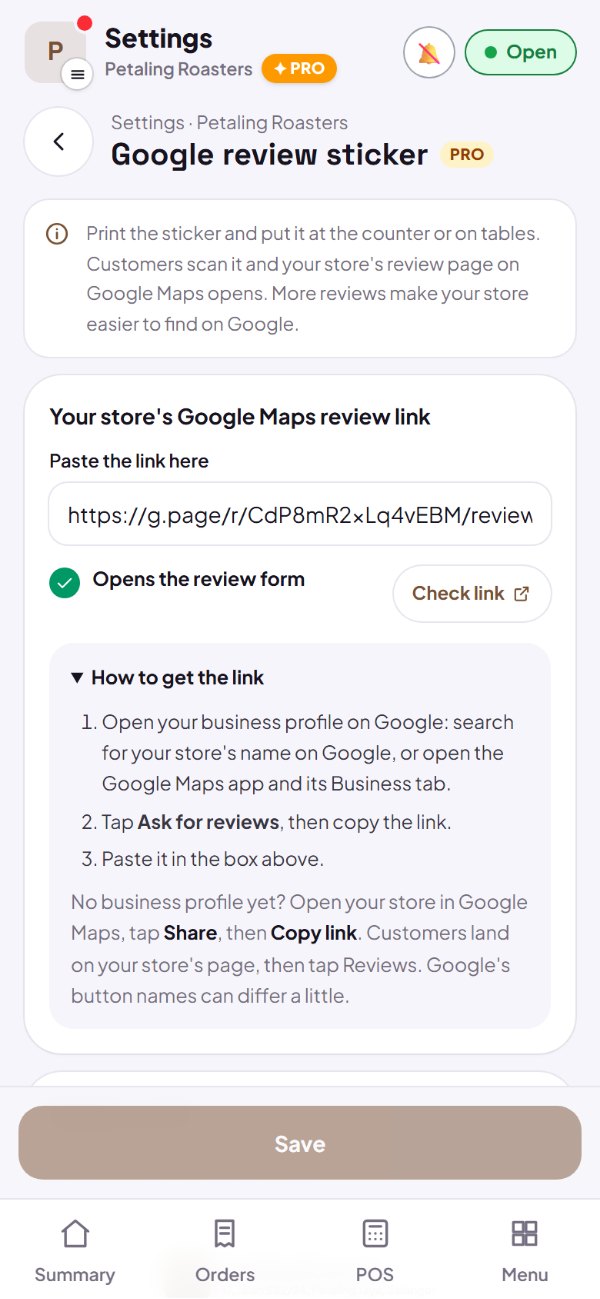
- The Ask for reviews link (g.page/r/…/review) opens the review form itself.
- No business profile yet? A link from Share in Google Maps works too. Customers land on your store's page, then tap Reviews.
- Links that don't go to Google Maps are turned away, so the QR code always opens Google Maps.
- Check link opens it in a new tab, so you can make sure it's your store.
How to use it: Dashboard → Settings → Google review sticker.
2. A sticker with your logo, name and colour, ready to print at A5
Below it is the sticker, just as it will print: your logo and name, five stars, a big QR code to that link, and directions for anyone who can't scan. Tap Download PDF: one A4 sheet with 2 A5 stickers and lines to cut along.
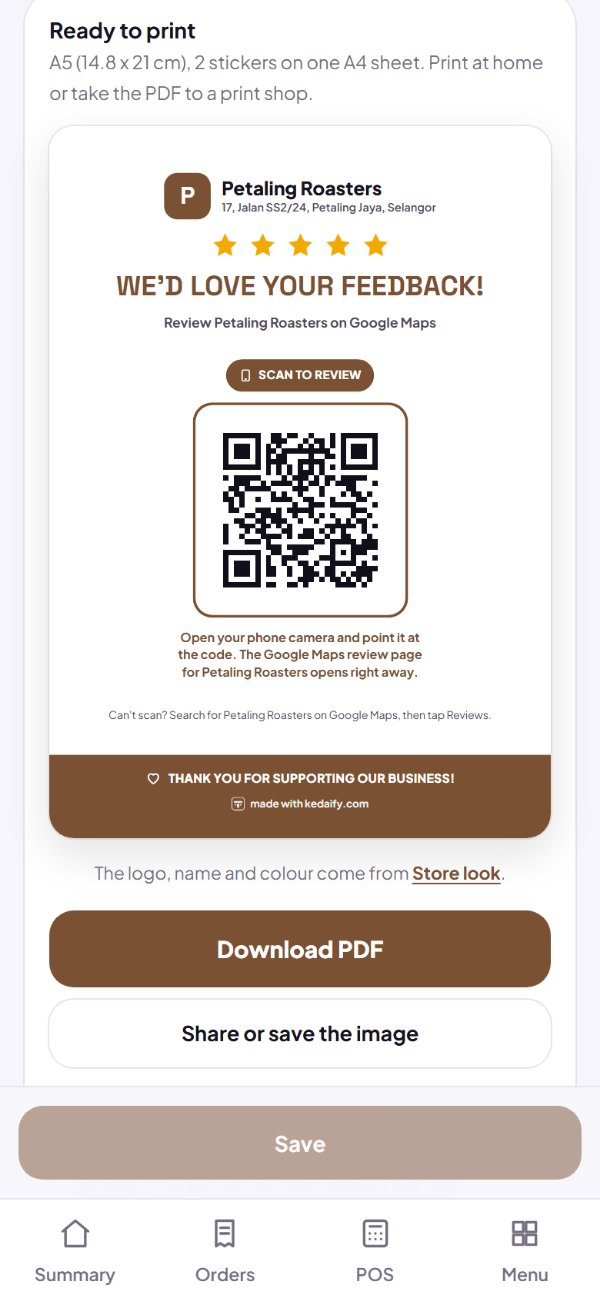
- Print at home, or send the PDF to a print shop to have it made into a sticker or slipped into an A5 acrylic stand.
- Share or save the image: a PNG you can send on WhatsApp.
- The logo, name and colour follow your Store look. Change them there and the sticker follows.
- The words on the sticker follow your store's language.
How to use it: Google review sticker → Download PDF.
Questions about this release
Where do the reviews go?
To Google Maps, on your store's profile. Kedaify doesn't keep or read Google reviews. Customer reviews on your own Kedaify store keep working as before.
Can I give a discount or a gift to people who leave a review?
No. Google's rules don't allow gifts or discounts for reviews, or asking only happy customers. Google can remove reviews like that. Offer the sticker to every customer.
My store has no business profile on Google yet. Can I still use it?
If your store already shows up in Google Maps, paste the link from Share. If it isn't there at all, add it as a Business Profile at business.google.com first, then take the Ask for reviews link.
If my Pro ends, do printed stickers still work?
Yes. The QR code goes straight to Google Maps, not through Kedaify. Pro is only needed to make and download the sticker.
The buttons on Google have different names. Why?
Google sometimes renames or moves its buttons. Look for the one that means asking for reviews or sharing. Kedaify still checks the link you paste.