New feature · 4 min read
Monthly report: this month against last month, down to net profit and stock
Month end often means a notebook, a calculator and bank statements. Now it's all on one screen: the Monthly report, under Reports. It shows this month against last month, the last 12 months, expenses by category, your stock, and a PDF you can send. A Pro feature. Orders also get a sales history: find old orders by month or by item, free on every plan.
1. This month against the same days last month
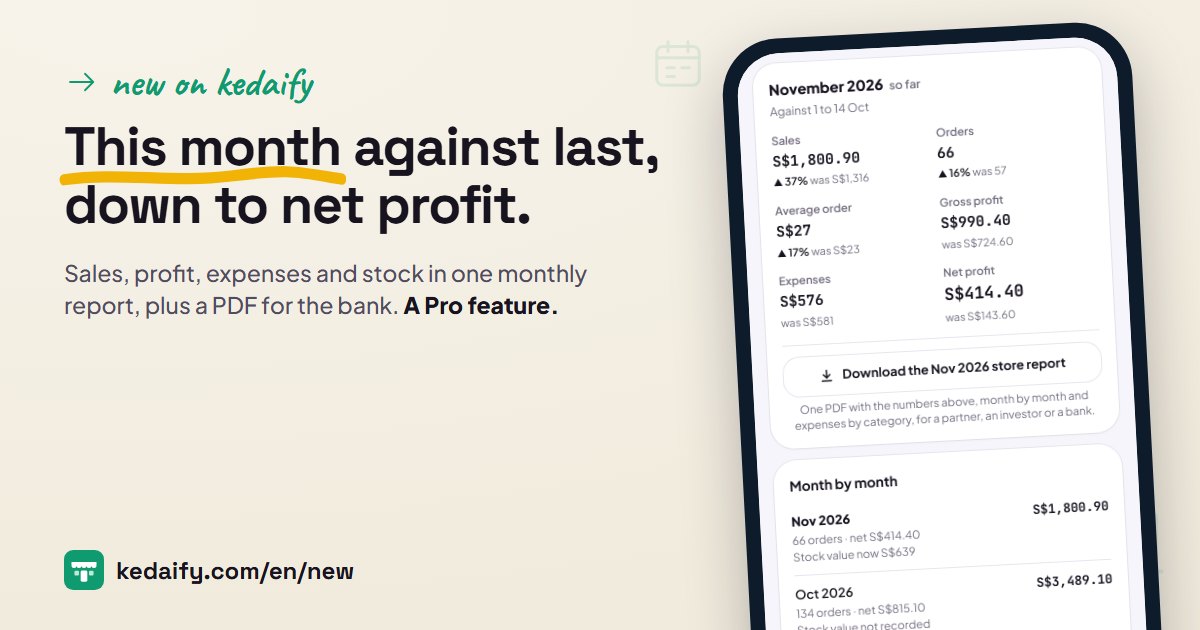
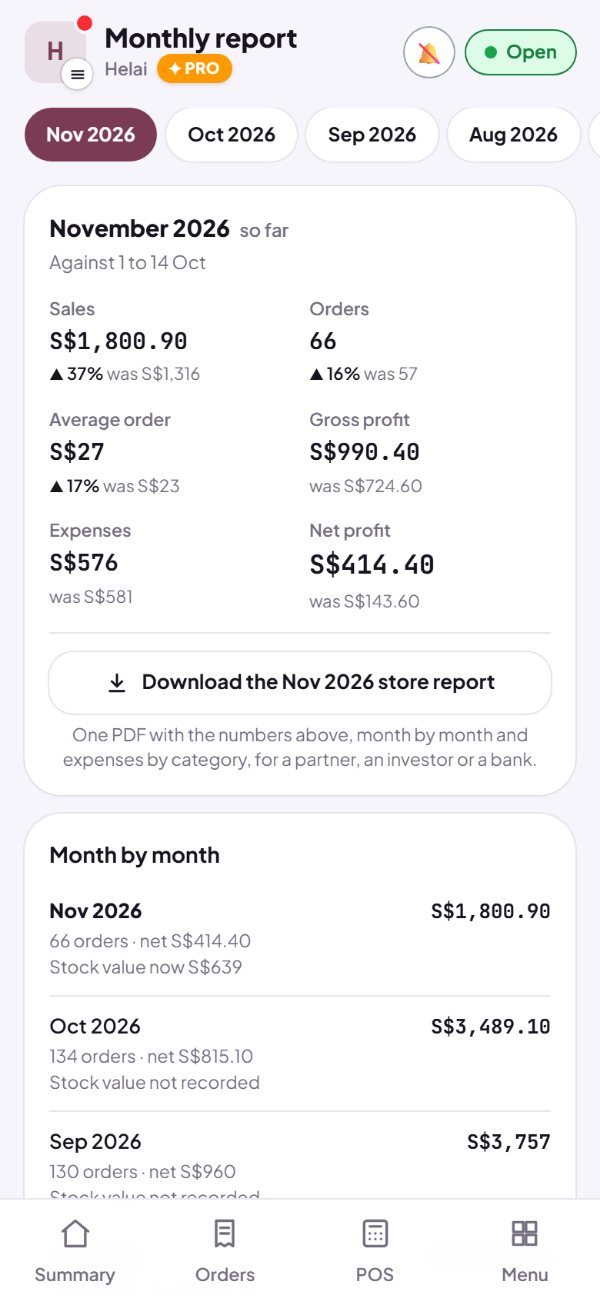
Open the Monthly report and you see six numbers for this month: sales, orders, average order, gross profit, expenses and net profit, each next to last month's. A month that's still running is compared with the same dates last month, so on the 14th it's against the 1st to the 14th, not a whole month. A month that's over is compared with the whole month before.
- Tap a month at the top to see another one.
- Gross profit comes from your product costs, or from stock and ingredient purchases when most products have no cost yet. One way per month.
- Expenses here are running costs, like rent, wages and electricity. Stock purchases never count twice.
- The change in percent shows when both months have at least 5 orders.
How to use it: Dashboard → Reports → Monthly report.
2. The last 12 months in one list, plus expenses by category
Below it is Month by month: each month with its sales, orders and net profit, going back 12 months. Tap a month to open it at the top. Then Expenses by category for the month you picked, largest first, from what you recorded under Expenses.
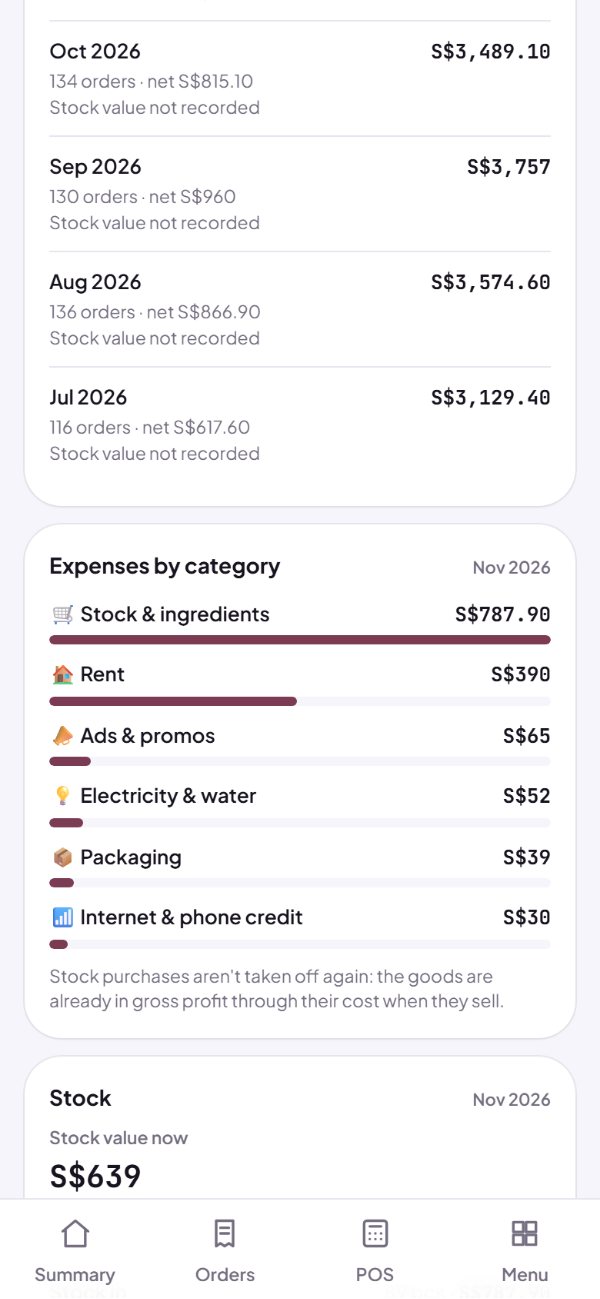
- A month with no expenses recorded shows gross profit instead of net profit.
- Stock purchases still show as money out, but aren't taken off profit again once your products have a cost.
- Stores on Kedaify Business get a link to Profit & loss, the books' version with depreciation and tax.
How to use it: Monthly report → Month by month.
3. Your store report in one PDF
Tap Download the store report under that month's numbers. Kedaify makes one PDF with the six numbers and what they're compared with, Month by month, and expenses by category. Send it to a business partner or an investor, or take it to the bank. It's a simple report from your store's records, not an official statement.
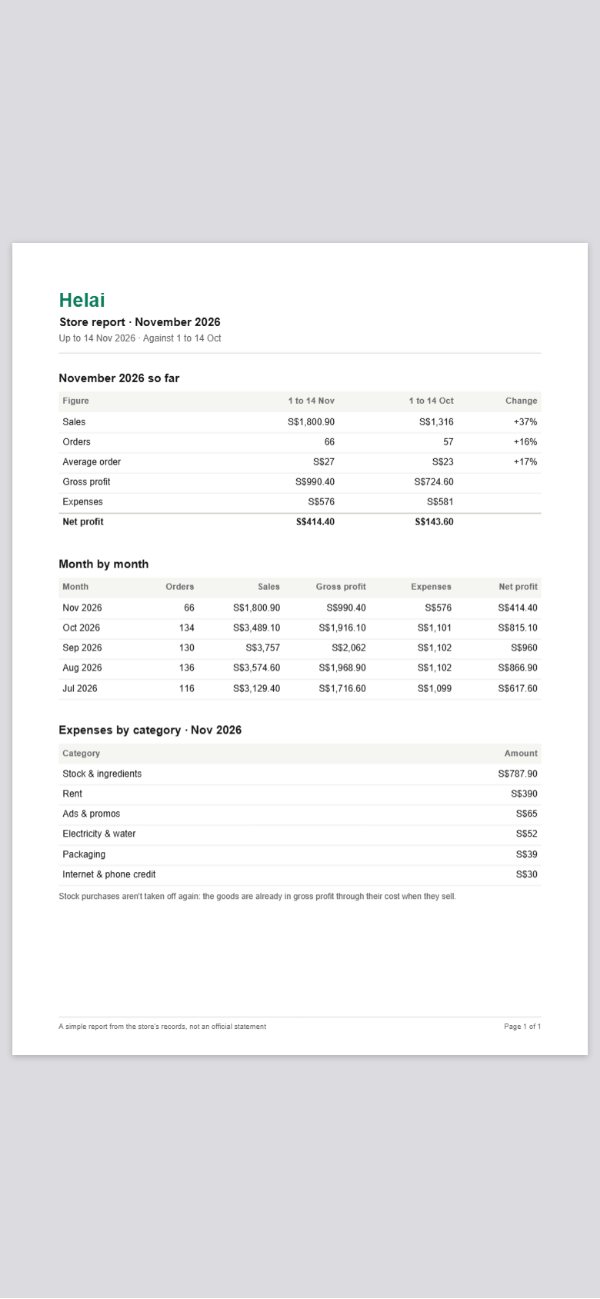
- The PDF is made on your own phone, from the numbers on the screen.
- Totals only: no customer names, no order details.
- Works for any month in the list: pick the month, then download.
How to use it: Monthly report → Download the store report.
4. Stock: its value, what came in and went out, what's about to run out
If your store tracks stock, the Monthly report also shows your stock value now and at the end of each month, then stock in, out through Kedaify, edited directly and count differences for the month. Below that is Stock now: how many items are sold out, running low or will run out within 7 days, with a link straight to your restock list.
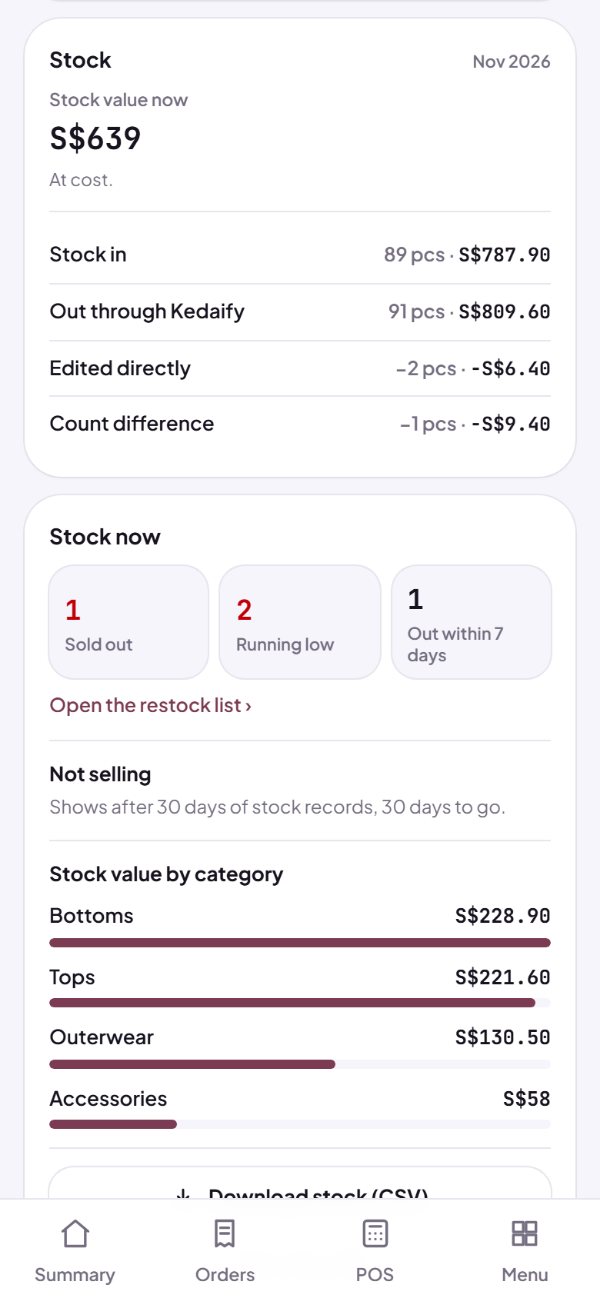
- Stock is valued at cost when items with a cost make up at least half of what's on hand, otherwise at the selling price. Stores on Kedaify Business use the stock value from their books.
- Stock value by category shows once your stock sits in 3 categories or more.
- Not selling: items that haven't gone out for 30 days, each with Set a promo price. It shows after 30 days of stock records and at least 20 items out.
- Download stock (CSV): one row per item, with on hand, cost, value, sold in 30 days, last out and days left.
How to use it: Monthly report → Stock.
5. Sales history in Orders: find an old order
In Orders, the Done and Cancelled tabs now have a date range (today to everything, a month or your own dates) and a search box. Search a customer's name, an item, a delivery name or the order number. Kedaify says how many orders match and what they come to. More than 60? Tap Load 60 more.
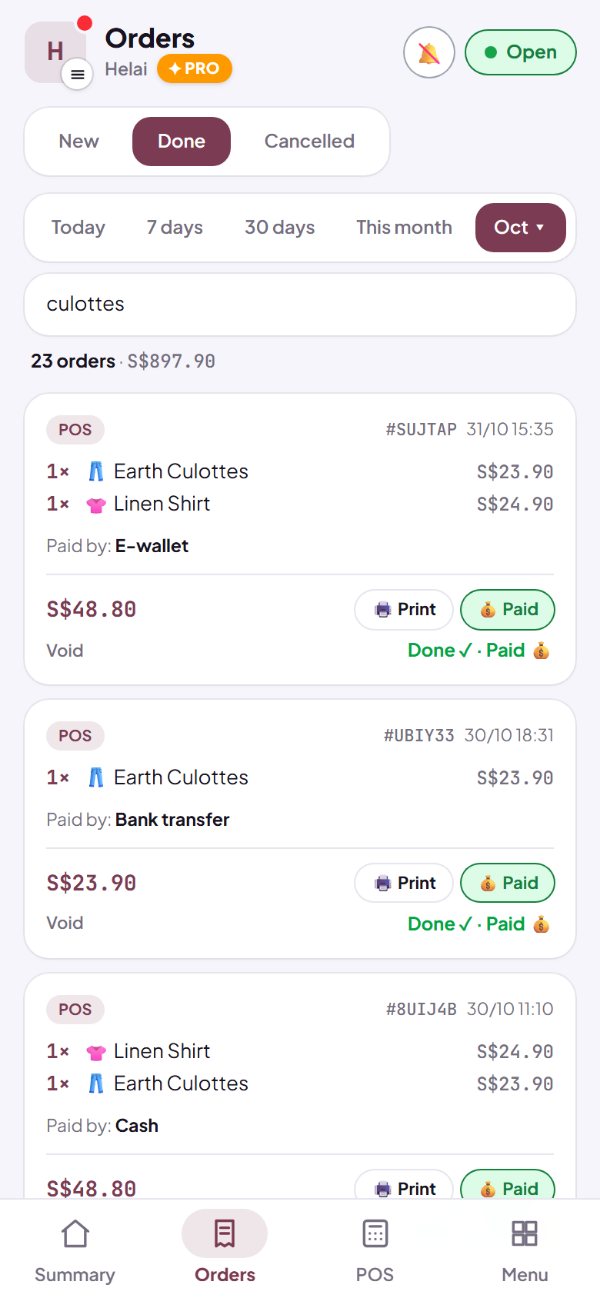
- Free on every plan, like every range on your Summary.
- Each card shows its order number, the same one as on the kitchen ticket.
- New stays your live queue of incoming orders.
How to use it: Dashboard → Orders → Done.
Questions about this release
Which plans have it?
Pro and Business, including the 14-day Pro trial for new stores. On the Free plan the tab shows this month's sales against the same days last month. The sales history in Orders is free on every plan.
Why does last month's stock value say not recorded?
Edits to stock on a product only reached the stock records in November 2026, and month-end values are worked back from those records. So they're recorded from November 2026 on.
Why don't I see Not selling yet?
It needs 30 days of full stock records and at least 20 items out in those 30 days. Full records count from 14 November 2026, so the list shows from mid December at the earliest.
Do the numbers match my Summary?
Yes. Each month is counted the same way as your Summary and Expenses for that month. Orders count once they're marked Done.
Who on my team can open it?
The owner, managers and accountants. Cashiers can't.