New feature · 3 min read
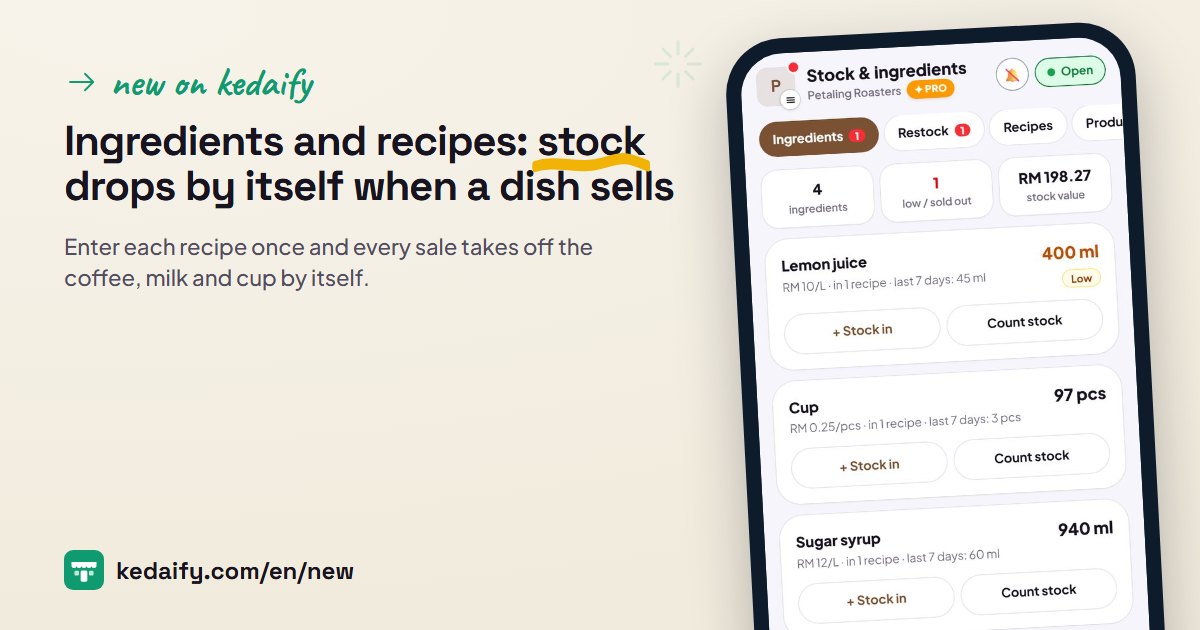
Ingredients and recipes: stock drops by itself when a dish sells
In cafes and eateries, what runs out first is usually not the dish but the ingredient: milk, palm sugar syrup, cups. Now Kedaify can track ingredients. Enter each recipe once, and every POS sale and every paid online order takes off the ingredients by itself. Stock in records the purchase price, counting stock shows the gap, and POS warns you when an ingredient runs low. This is on Pro; stock per product in Menu stays free.
1. An ingredient list, in the units you use
Add an ingredient with its unit: grams, ml or pieces. You can buy it per kg or per litre, and Kedaify converts it. Enter the stock you have now and the purchase price, then set when an ingredient counts as running low.
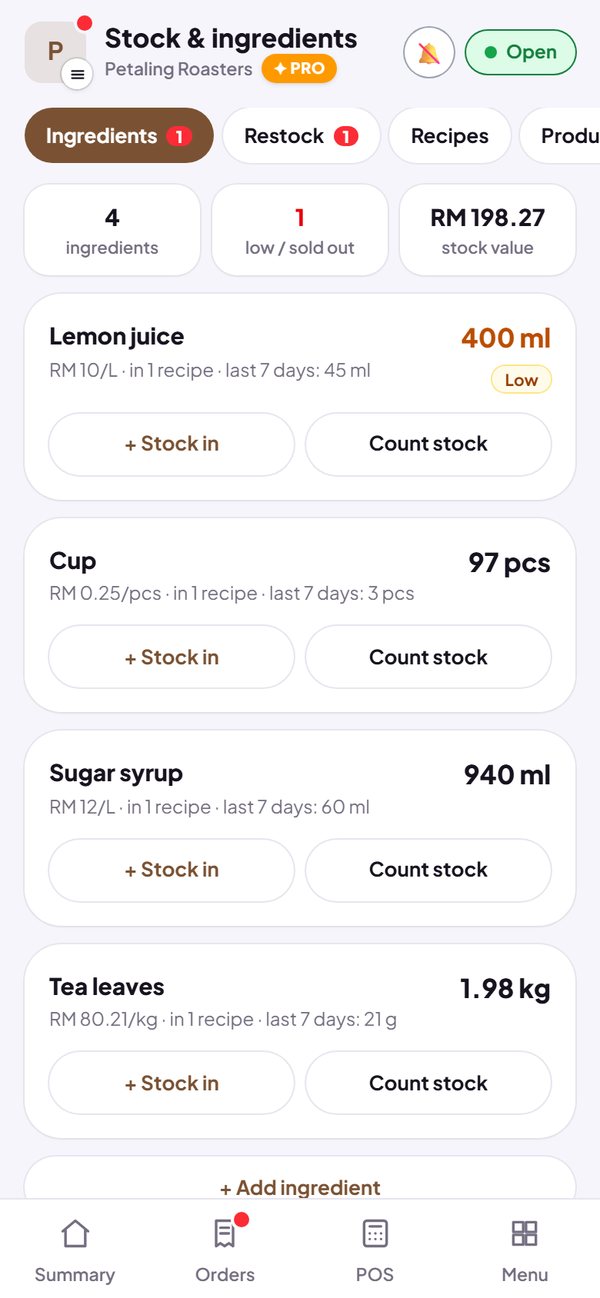
- Each ingredient shows the stock left, the price per kg or litre, and how much was used in the last 7 days.
- Ingredients that are low or out move to the top of the list and are marked.
- The value of your ingredient stock is worked out from the stock left and the purchase price.
How to use it: Dashboard → Stock & ingredients → Ingredients. Pro plan.
2. A recipe for each dish, including the options
Open the dish and enter the ingredients for one serving, for example coffee 18 g, milk 150 ml, palm sugar syrup 20 ml, cup 1. A buyer's choices can add or take off ingredients: Large adds 50 ml of milk, Less sugar takes off 10 ml of syrup.
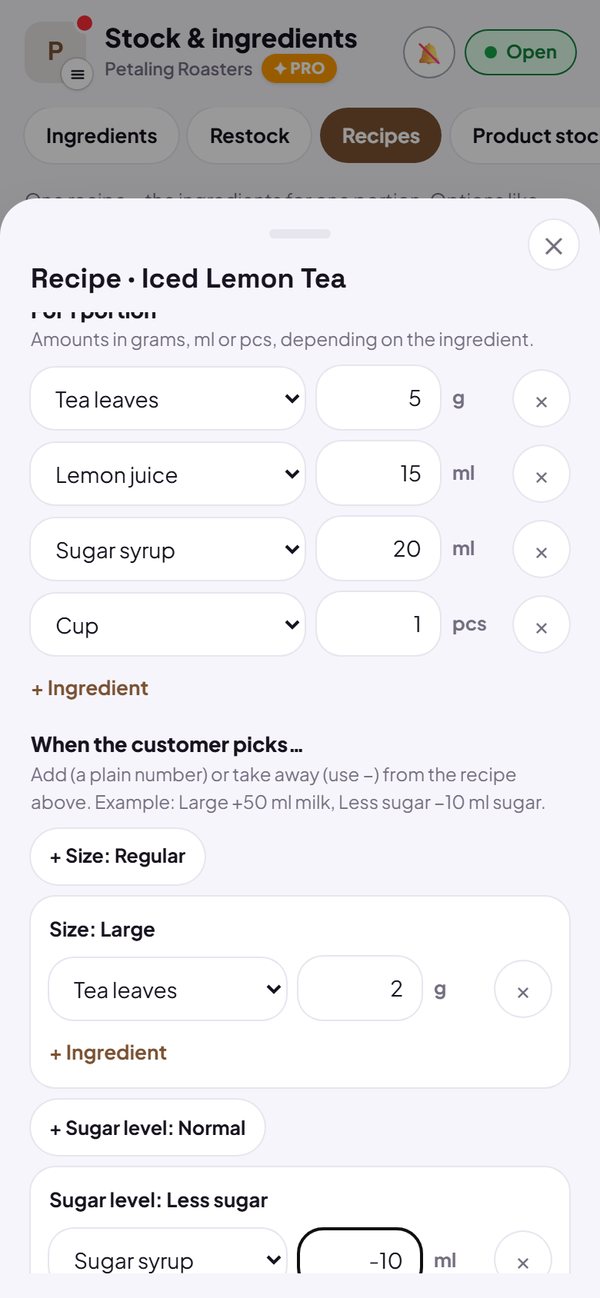
- Cost per serving is worked out from the ingredient prices, and can be used as the product's cost in Products & margins.
- Dishes without a recipe work as usual and don't take off any ingredients.
- Change a recipe any time. Sales that already happened don't change.
How to use it: Stock & ingredients → Recipes → pick the dish.
3. Stock in and counting stock
When you shop, record the stock in and the total price. The average price of the ingredient updates too, so cost per serving follows your latest purchase price. When you count stock, enter what is really there; the gap is saved with its reason: counting gap, wasted, spoiled, or used by you.
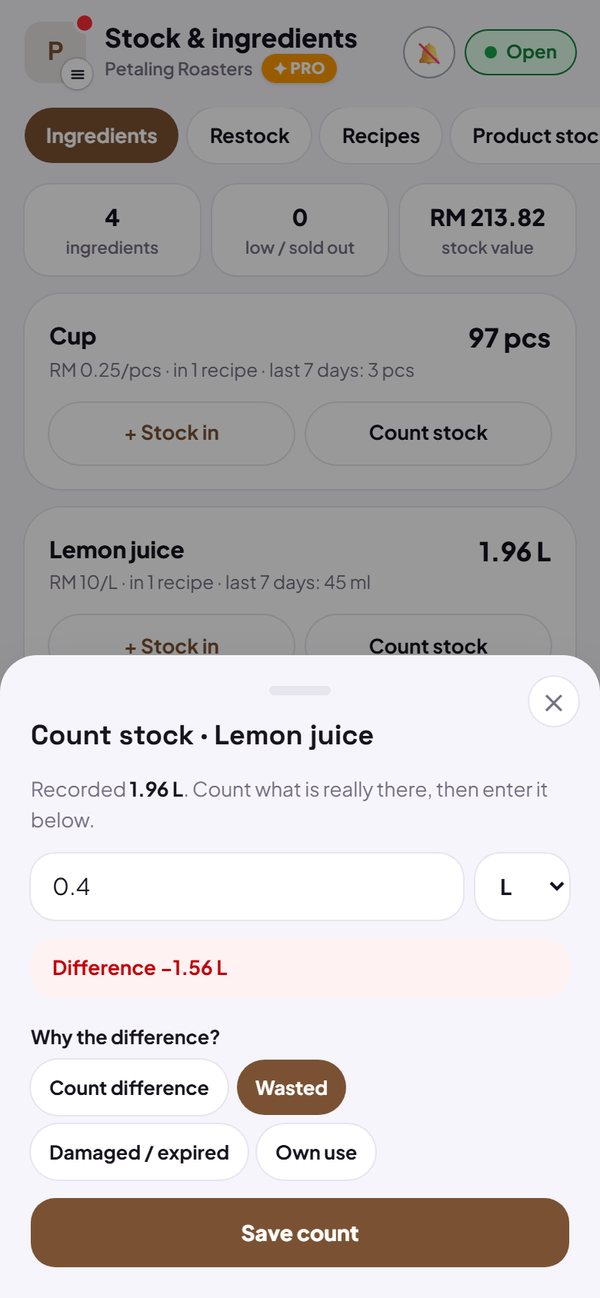
- It also works for products whose stock you track in Menu, such as bottled water or snacks. The purchase price updates the product's cost.
- Every change is in History: sold, cancelled, stock in and stock counts.
How to use it: Stock & ingredients → + Stock in / Count stock.
4. POS warns you before an ingredient runs out
A dish whose ingredient is running low is marked in POS, for example Milk low, and a dish without enough ingredient for one serving is marked sold out. POS can still sell it; the mark is only a reminder to restock.
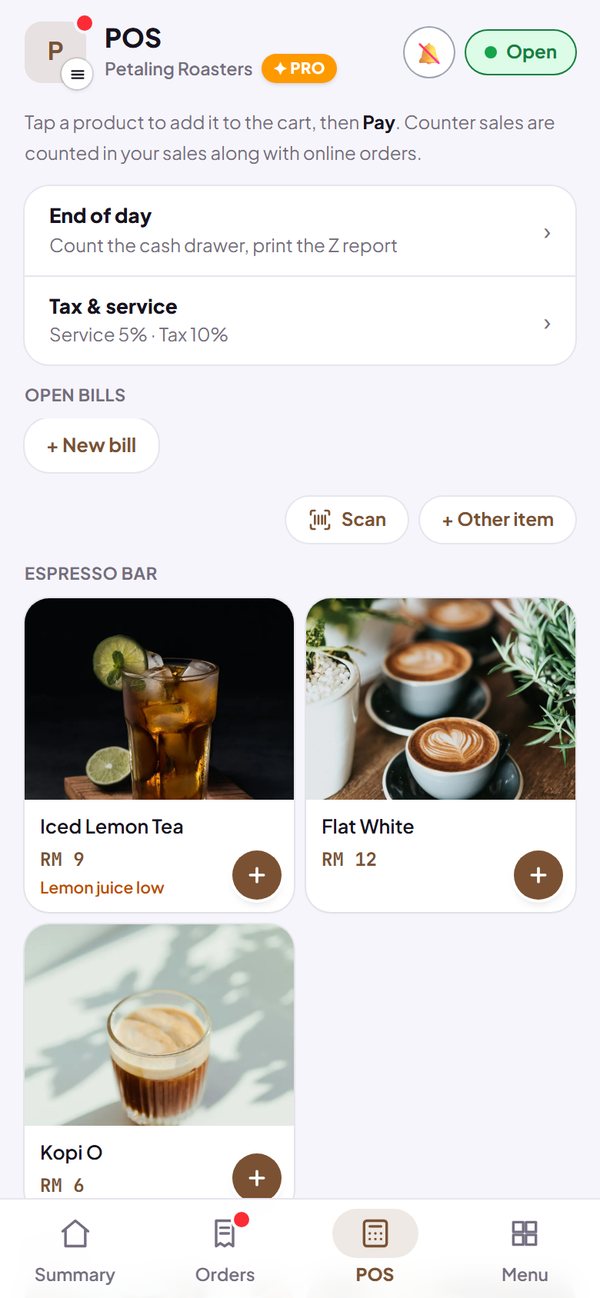
- POS sales take off ingredients at once; online orders do so when they are marked Paid or Done.
- Cancelling a sale puts back exactly the ingredients that sale used.
How to use it: Automatic in POS, once a recipe is filled in.
5. POS receipt: Save and Share are now two buttons
Like on the online store's payment page, the POS receipt now has separate Save receipt and Share receipt buttons. Save puts the receipt image on your phone, and Share opens WhatsApp or another app. These buttons stay free.
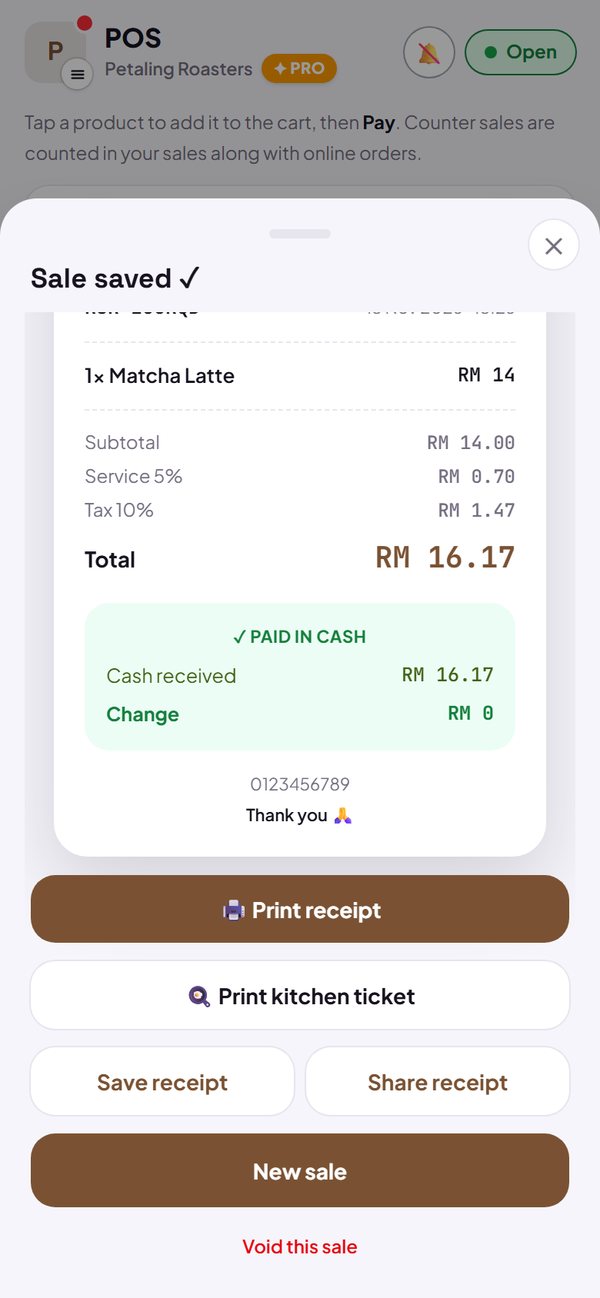
- The receipt image is sharper, so it stays readable when you zoom in.
How to use it: POS → Pay → Save receipt / Share receipt.
Questions about this release
If a sale is cancelled, do the ingredients come back?
Yes. Cancelling puts back exactly the amount of ingredients that sale used, even if the recipe was changed afterwards.
Do online orders take off ingredients too?
Yes, when the order is marked Paid or Done, just like product stock. An order that hasn't been paid takes off nothing.
Does every dish need a recipe?
No. Only fill in recipes for dishes whose ingredients you want to track. A dish without a recipe takes off nothing.
I'm on the Free plan. What can I still use?
POS, receipts (including Save and Share) and stock per product in Menu stay free. Ingredients, recipes, stock in and stock counts open up when your store is on Pro.