New feature · 3 min read
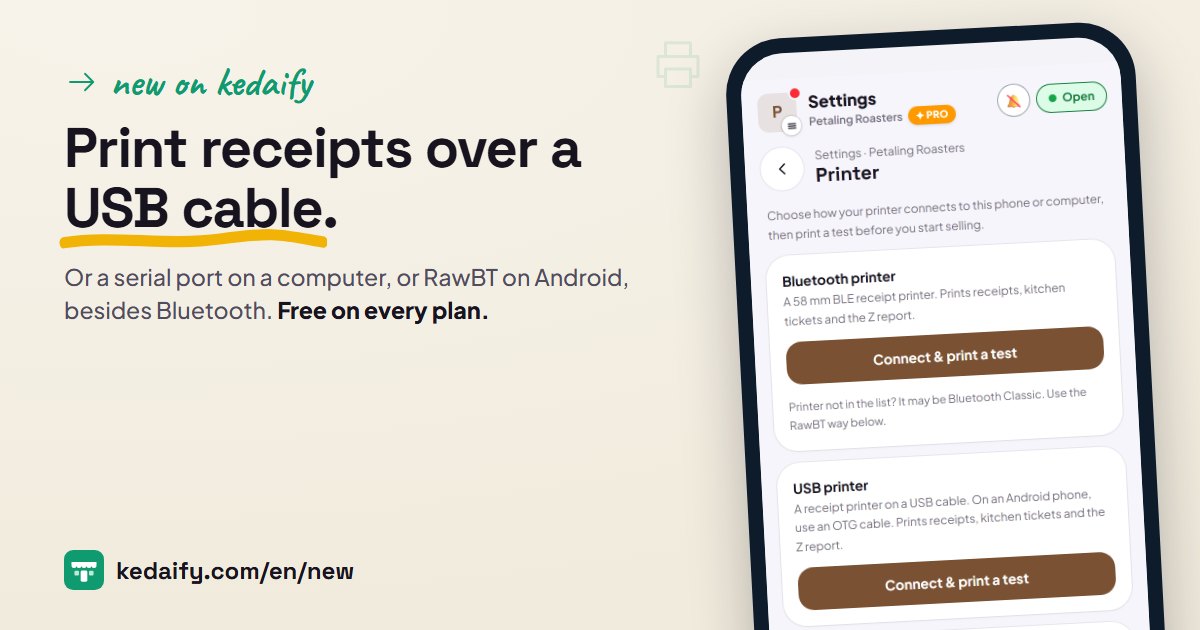
Print receipts over a USB cable, a serial port or RawBT
Many receipt printers never show up in the browser's Bluetooth list, or connect with a cable. Settings → Printer now shows every way that works on the phone or computer in your hand, each with a test print.
1. The ways that work on this device
Every phone and computer can do different things. The Printer page only shows the ways that work on that device, and each one has a test print button.
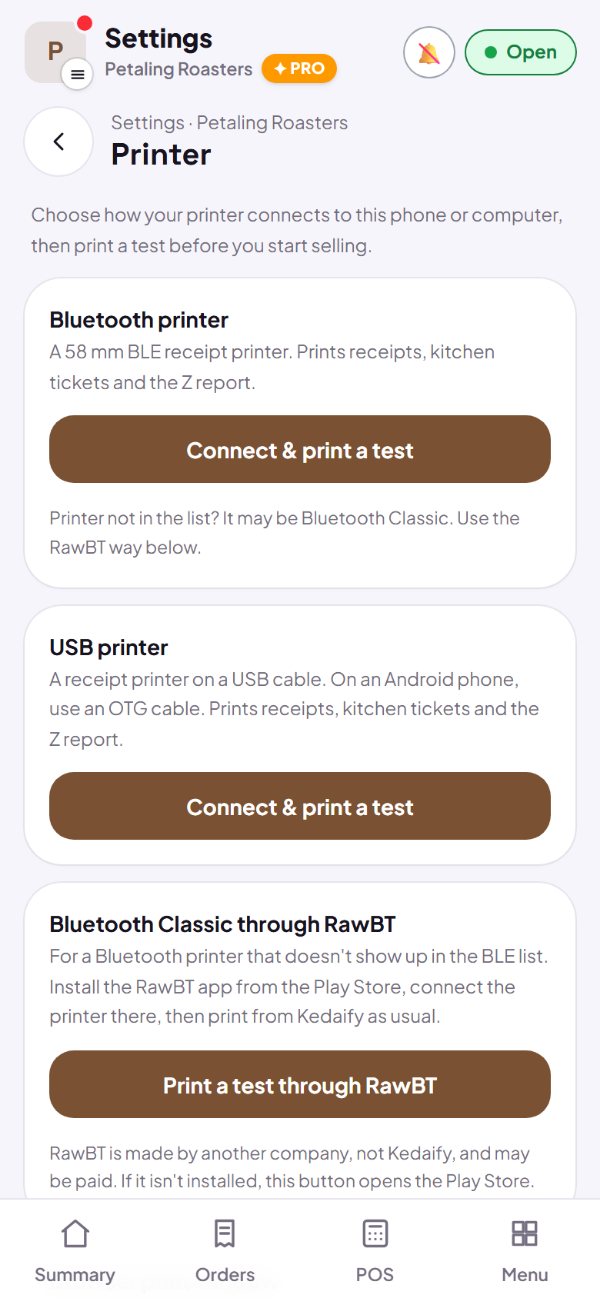
- Bluetooth (BLE) printers work as before, in Chrome or Edge.
- USB printer, Serial port and Bluetooth Classic through RawBT show up depending on the device.
- The way you pick is marked In use, and receipts, kitchen tickets and the Z report print that way.
How to use it: Dashboard → Settings → Printer.
2. USB printers, on a cable
A receipt printer with a USB cable works straight from Chrome or Edge. On an Android phone, connect it with an OTG cable; on a computer, just plug it in.
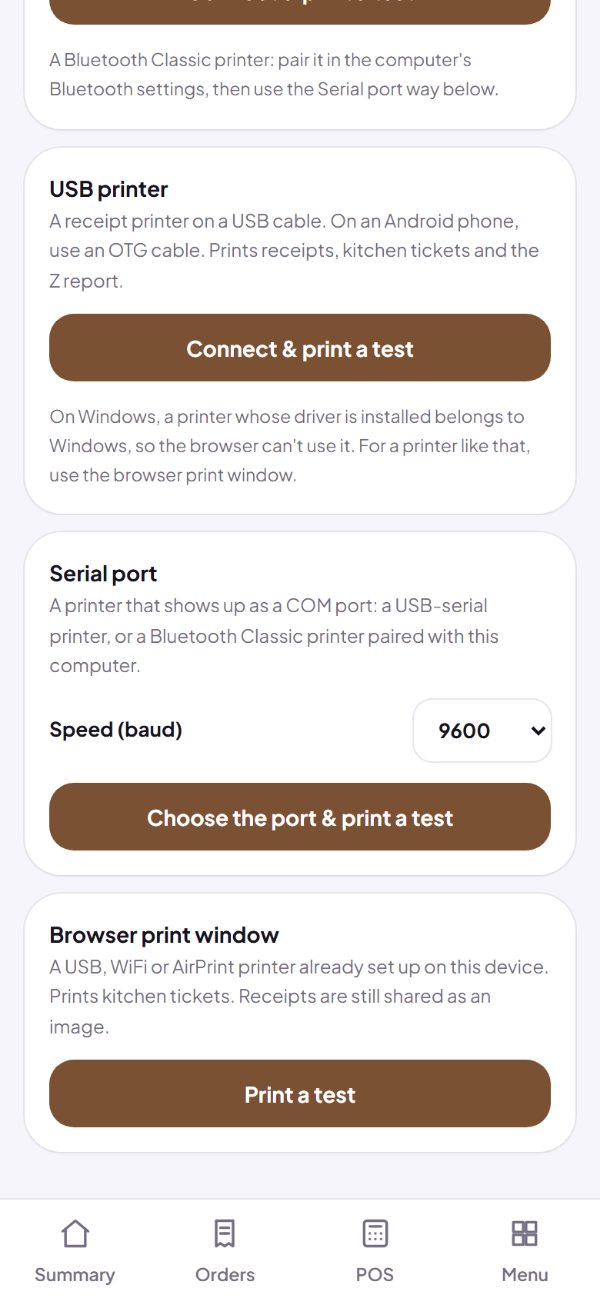
- On Windows, a printer whose driver is installed is held by Windows, so the browser can't connect. For a printer like that, use the browser print window.
- The first Print in Orders offers a USB printer too.
How to use it: Settings → Printer → USB printer → Connect & print a test.
3. A serial port on a computer
A printer that shows up as a COM port on a computer, like a USB serial printer or a Bluetooth Classic printer paired in the computer's settings, works through Serial port.
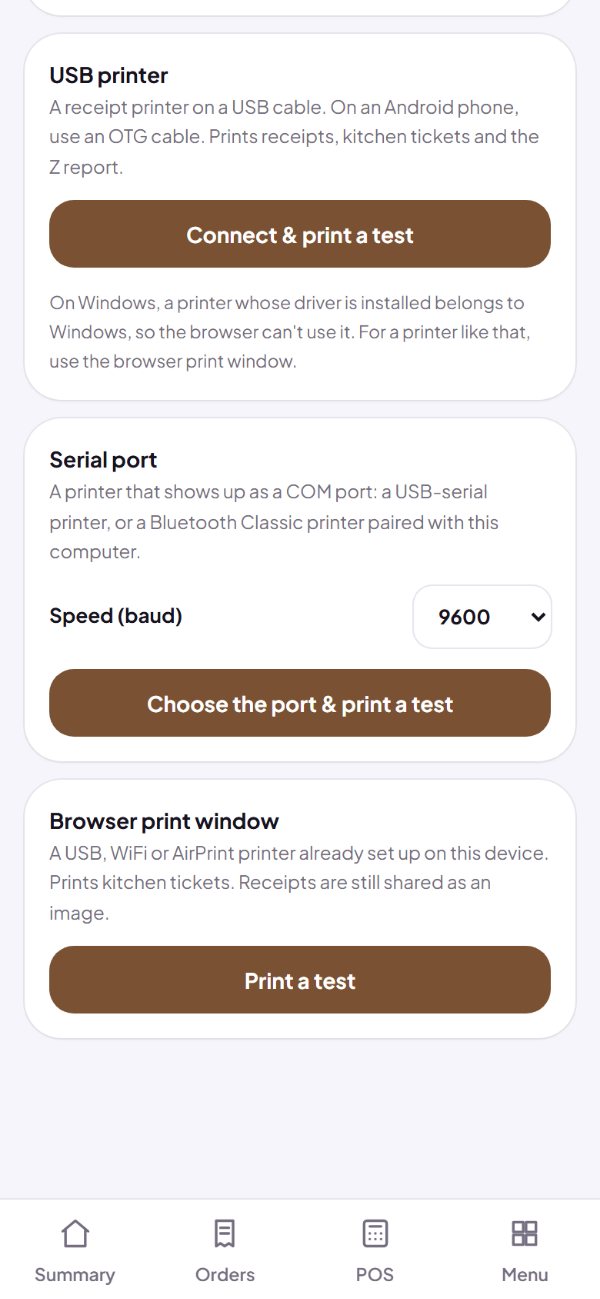
- Pick the speed (baud). 9600 and 115200 are the most common.
- Works in Chrome and Edge on a computer.
How to use it: Settings → Printer → Serial port → pick the speed → Choose the port & print a test.
4. Bluetooth Classic on Android, through RawBT
A Bluetooth printer that isn't in the list is usually a Bluetooth Classic one. On Android, install the RawBT app from the Play Store, connect the printer there, and Kedaify prints through RawBT.
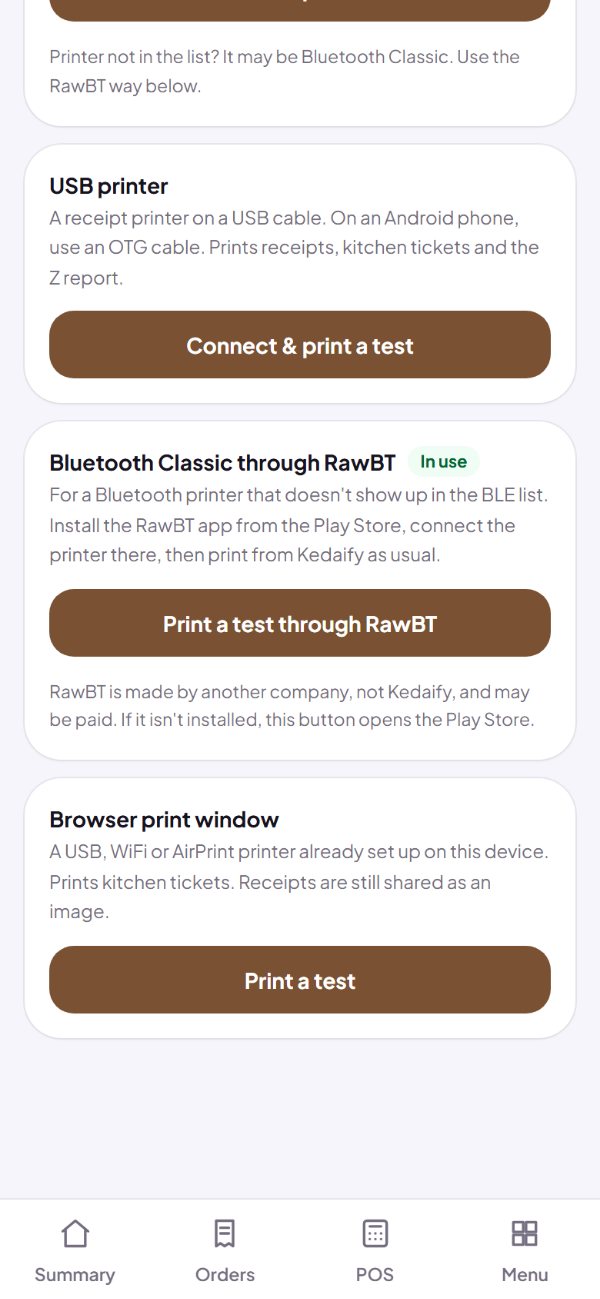
- RawBT is made by another company, not Kedaify, and may be paid.
- If RawBT isn't installed, the button opens the Play Store.
- An iPhone can't connect to a receipt printer yet; there, the receipt is shared as an image.
How to use it: Settings → Printer → Bluetooth Classic through RawBT → Print a test through RawBT.
Questions about this release
Do I need Pro?
No. Printing receipts is free on every plan. Kitchen tickets and the Z report are Pro features, and they print the same way.
Which way suits my printer?
Try Bluetooth printer first. If your printer isn't in the list, it's probably Bluetooth Classic: use RawBT on Android, or Serial port on a computer. A printer on a cable uses USB printer.
Does it work on an iPhone?
Safari on iPhone and iPad can't connect to receipt printers yet. There, the receipt is shared as an image, or printed through the browser print window.
Nothing came out?
After a test print, Settings → Printer asks whether the paper came out. If it didn't, there's a list of things to check.