New feature · 1 min read
Order from the table with a QR code
Print a QR code for each table so orders are tagged with the table number, plus a store QR poster. A Pro feature.
1. Table QR codes
Enter the number of tables, then print one QR code for each table. Buyers scan the QR at their table, order from their phone, and the order comes in with the table number.
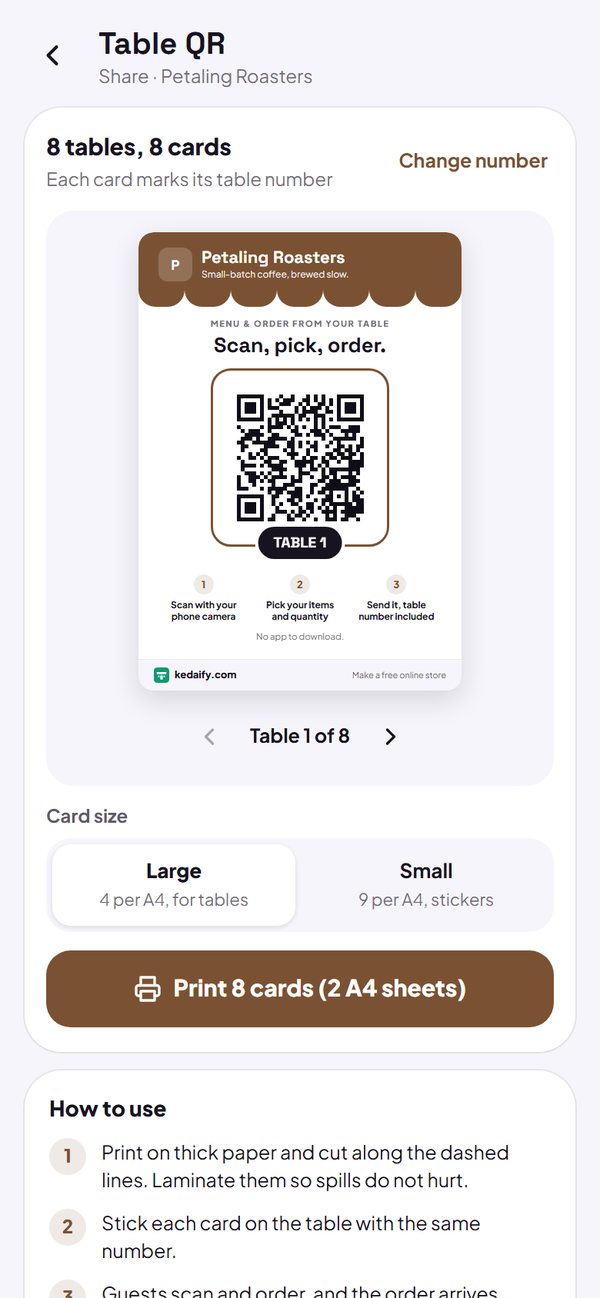
- Up to 500 tables.
- Kitchen tickets show the table number in big print.
How to use it: Settings → How to order & pay → Order from the table, then Share → Table QR.
2. Buyers know which table they are at
When a buyer opens the store from a table QR, they see “You are at Table 4. Your order is tagged with this table automatically” at the top of the page.
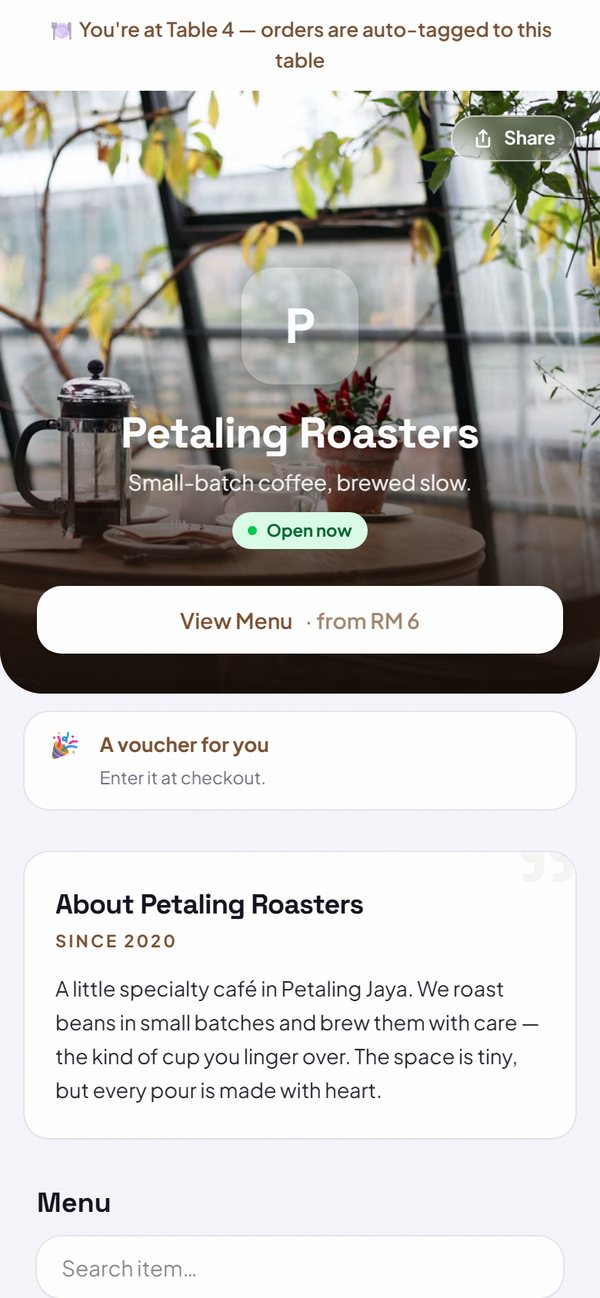
How to use it: Automatic.
3. Store QR poster
A poster with a QR code to your store, ready to print or share as an image, to put up at the counter, the window or the door.
- Table QR codes and the poster are part of the Pro plan.
- The store card in the Share tab stays free.
How to use it: Dashboard → Share → Store QR poster.
Questions about this release
Are table QR codes a paid feature?
Yes, table QR codes and the QR poster are part of the Pro plan. You can still enter the number of tables on the Free plan.