Guide · 4 min read
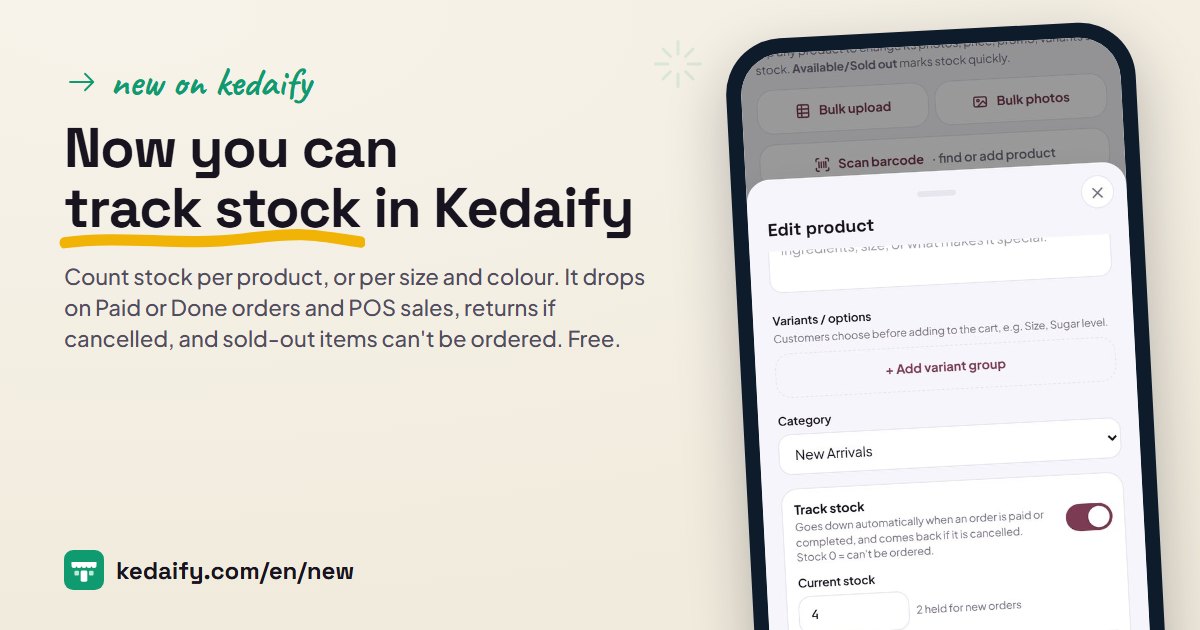
Now you can track stock in Kedaify
No more writing down what's left in a notebook or marking items Sold out one by one. Enter your stock once and Kedaify does the counting: it goes down with every sale, comes back when an order is cancelled, and stops taking orders when an item runs out. Here's how it works.
1. Turn on Track stock
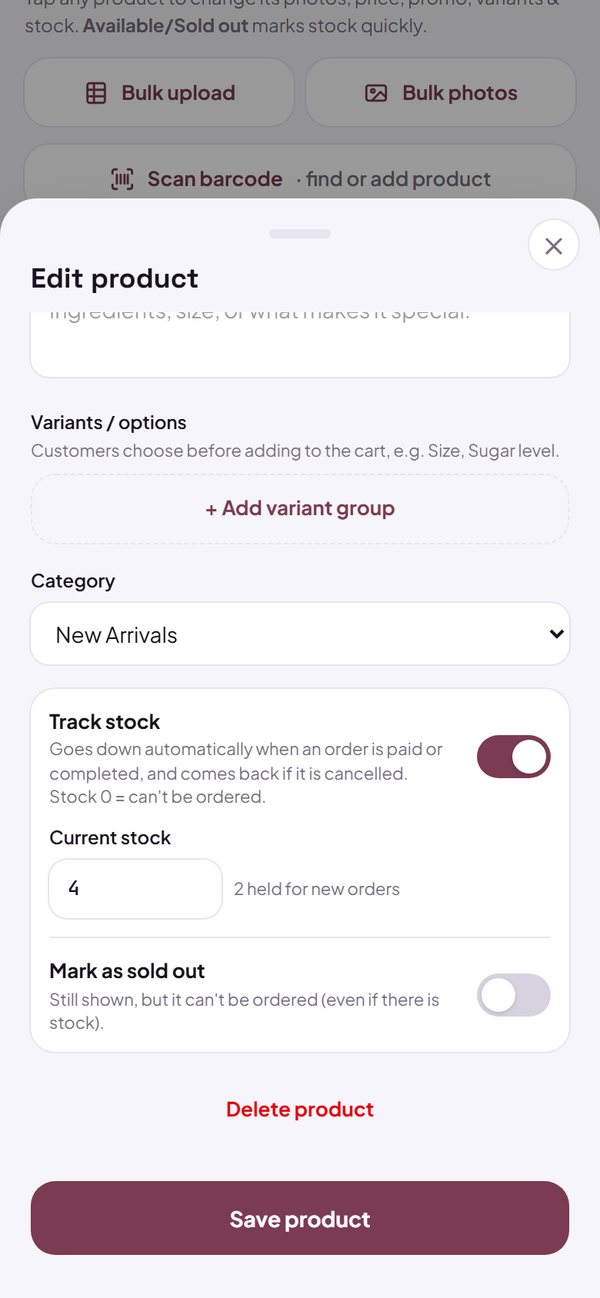
Open the Menu tab, tap a product, turn on Track stock and enter how many you have now. Save. From then on the count updates by itself.
- Products you don't track work as before, and can be ordered without limit.
- Mark as sold out is still there, for closing a product for a while even when you have stock.
How to use it: Dashboard → Menu → tap a product → Track stock.
2. Stock per size or colour
If your product has options like Size S, M, L, choose By size and enter the stock for each option. Buyers can only pick sizes that are still available.
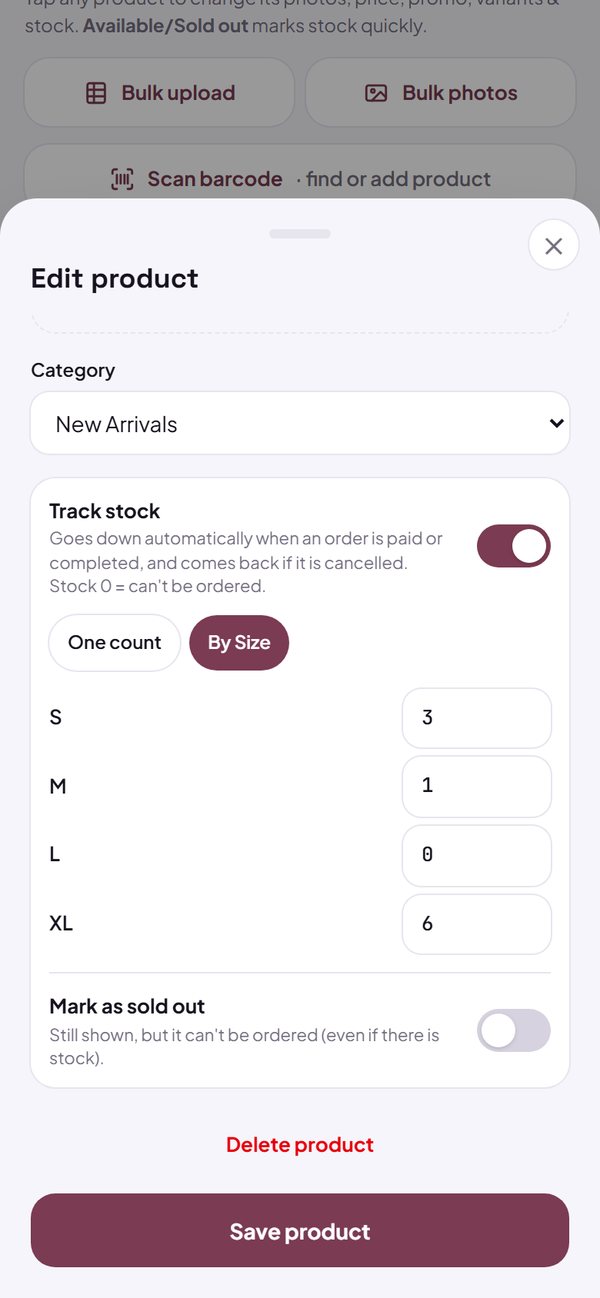
- One option group per product, from a group where the buyer picks one (not a group where they can pick several).
- An option with 0 stock shows as sold out and can't be picked.
How to use it: Menu → tap a product → Track stock → By size.
3. Buyers see what's left
In your store, a product that is running low shows how many are left. A product that is gone is marked SOLD OUT and can't be added to the cart. Buyers also can't order more than you have.
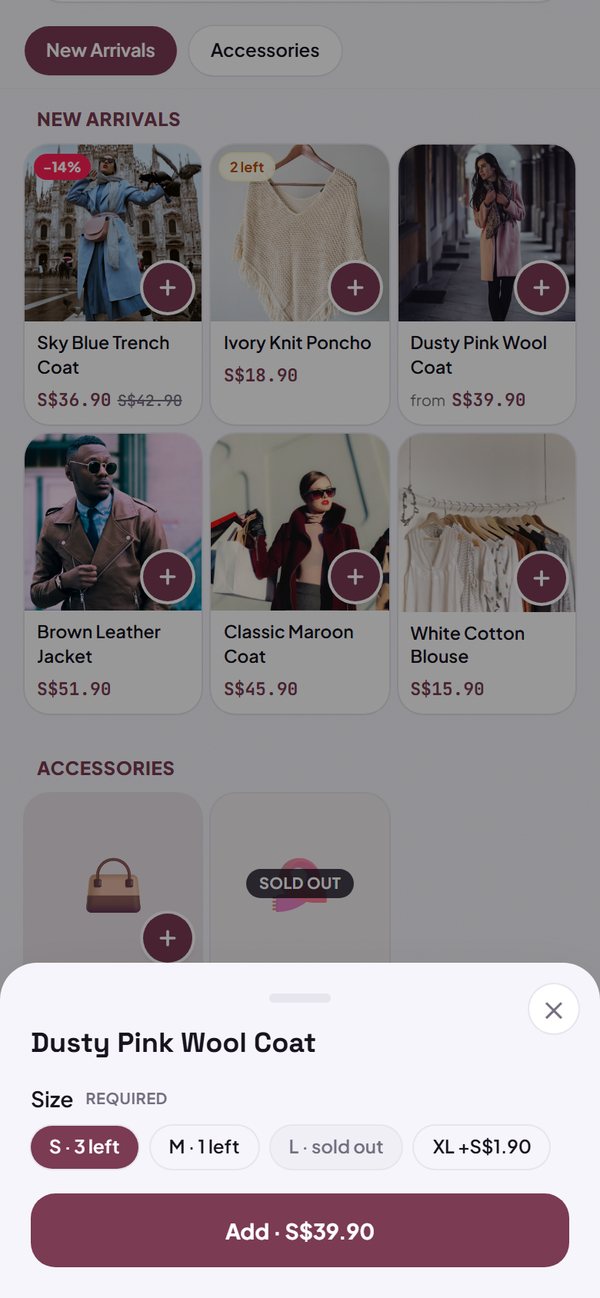
- The number left shows when 5 or fewer remain.
- If stock runs out while an item is still in someone's cart, the cart adjusts by itself.
How to use it: Automatic in your store.
4. When stock goes down
A new order that hasn't been paid holds its stock for 24 hours, so the same item isn't sold twice. When you mark the order Paid or Done, the stock really goes down. If the order is cancelled, the stock comes back. A sale at POS lowers stock straight away.
- An order that never gets paid releases its hold by itself after 24 hours.
- The amount on hold shows in Edit product, for example 2 held by new orders.
- POS sales recorded while offline lower the stock as soon as they are sent.
How to use it: Dashboard → Orders → mark as Paid or Done.
5. Check what's running low
In the Menu tab, every product shows how much stock is left. When some are running low, a low-stock button appears: tap it to show only those products, then top up the stock.
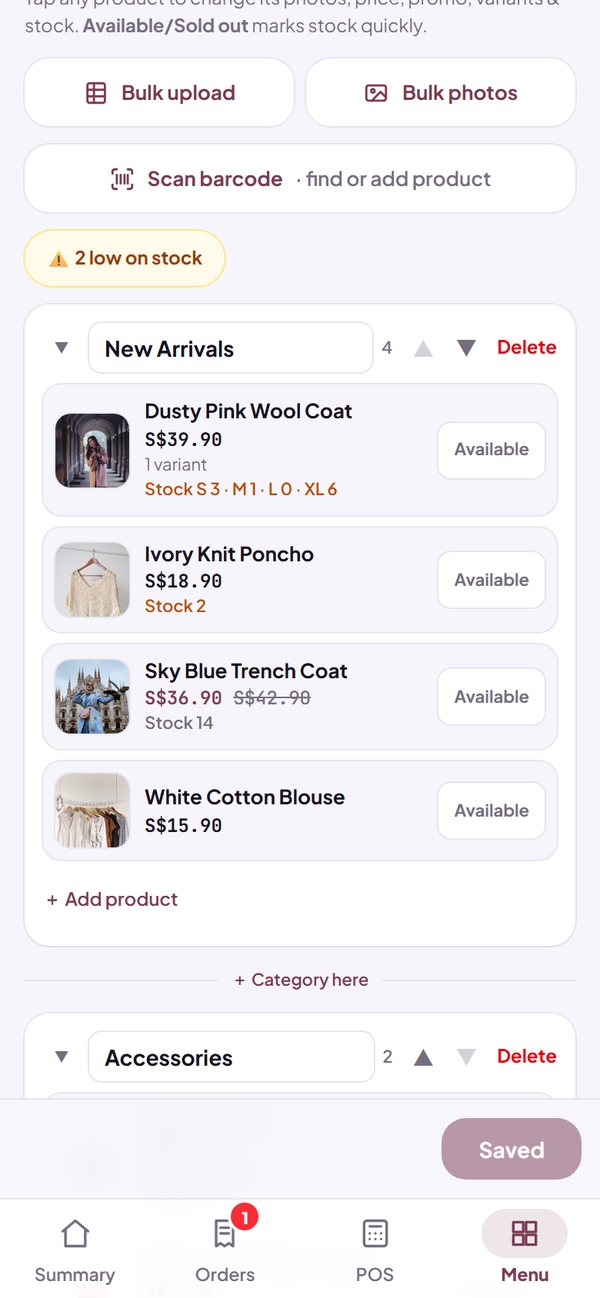
- Low means 5 or fewer left.
- To add stock: tap the product, change the current stock, then save.
How to use it: Dashboard → Menu.
6. Change lots of stock at once
Have many products? Download your catalogue as a CSV file from Bulk upload, fill in the stock column in Excel or Google Sheets, then upload it again. For stock per option, write it like Size: S=3, M=0.
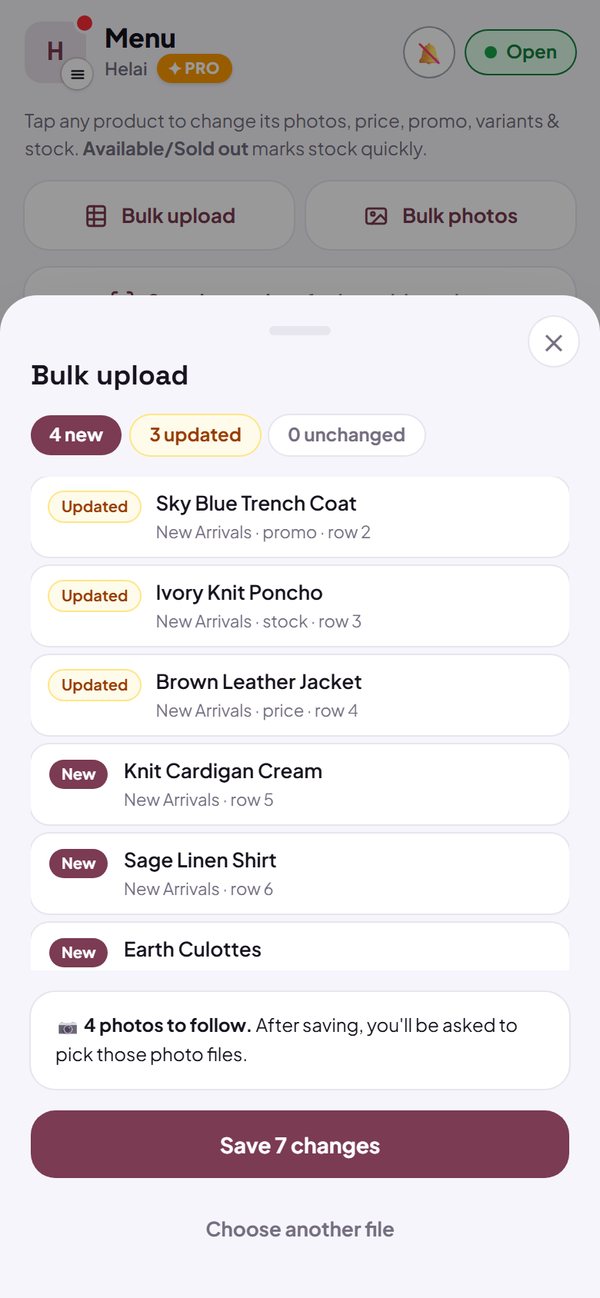
- An empty stock cell means the stock is left unchanged; a - means stop tracking stock.
- Every change is checked before it is saved.
How to use it: Dashboard → Menu → Bulk upload.
Questions about this guide
Is stock tracking a paid feature?
No. Stock tracking, including per size and colour and through bulk upload, is available on the Free plan.
If a WhatsApp order doesn't go through, is the stock lost?
No. A new order only holds the stock for 24 hours while it is unpaid. If you don't mark it Paid or Done, the hold is released by itself.
Stock in Kedaify doesn't match what's on my shelf. What do I do?
Tap the product in the Menu tab, change the current stock to the real number, then save.
Does POS show the stock left?
Yes. Products whose stock you track show what's left in POS, including per size in the options sheet. If the stock says 0 but you have the item in your hand, POS asks first and then lets you sell it. The stock goes negative and is flagged for a recount in the Menu tab, so you can count again.
Can I track ingredients, like sugar or coffee beans?
Not yet. Stock in Kedaify is counted per product or per product option. Ingredient tracking per recipe is on our plan.